 ee
eeWebcams ›
Best Webcams For Linux 2026
Finding a webcam that works seamlessly with Linux in 2026 is no longer the nightmare it once was, but it still requires careful research. While plug-and-play UVC (USB Video Class) compatibility is now the gold standard, not every webcam ships with Linux-friendly firmware, and proprietary software features can be hit or miss without Wine or workarounds. Whether you're dialing into remote meetings, streaming your setup on Twitch, recording tutorials for YouTube, or just video-calling friends and family, the right webcam makes all the difference — and on Linux, compatibility comes first.
We've tested and reviewed seven of the best webcams available in 2026, with a sharp focus on Linux compatibility, image quality, build reliability, and value. Our list spans the full price spectrum, from the trusty Logitech C920 that Linux users have depended on for years to premium options like the Logitech Brio 4K and the Elgato Facecam MK.2. Each pick is UVC-compliant, meaning it works out of the box with virtually every modern Linux distribution — Ubuntu, Fedora, Arch, Pop!_OS, and beyond — with zero driver installation required.
Whether you're a developer hopping on daily standups, a streamer broadcasting gameplay, or a content creator producing polished tutorial videos, this guide has a webcam that fits your workflow and budget. Read on for detailed reviews, a comprehensive buying guide, and everything else you need to make an informed decision.

Contents
- Editor's Recommendation: Top Picks of 2026
- Product Reviews
- Logitech HD Pro Webcam C920 — Best Budget-Friendly Classic
- Logitech C922 Pro Stream Webcam — Best for Streaming on Linux
- Logitech Brio 4K Webcam — Best Premium 4K Option
- Elgato Facecam MK.2 — Best for Content Creators
- Razer Kiyo V2 X — Best for 1440p Gaming Streams
- Microsoft LifeCam Cinema — Best for Video Conferencing
- Logitech Brio 100 — Best Entry-Level Pick
- Buying Guide
- Frequently Asked Questions
- Conclusion
Editor's Recommendation: Top Picks of 2026
- #PreviewProductRating
- Bestseller No. 1
 Rating:

- Bestseller No. 2
 Rating:
 - Bestseller No. 3
 Rating:
 - Bestseller No. 4
 Rating:
 - Bestseller No. 5
 Rating:
 - Bestseller No. 6
 Rating:
 - Bestseller No. 7
 Rating:

Detailed Product Reviews
1. Logitech HD Pro Webcam C920 — Best Budget-Friendly Classic
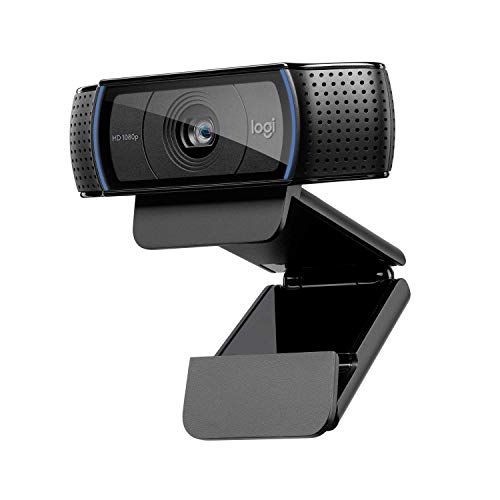
The Logitech C920 is the webcam that Linux users have trusted for over a decade, and in 2026 it remains one of the most reliably compatible cameras you can buy. Offering Full HD 1080p resolution at 30 frames per second, this camera delivers crisp, natural-looking video that's more than adequate for video conferencing, recording tutorials, or casual streaming. It works out of the box on every major Linux distribution thanks to full UVC compliance — plug it in via USB, and your system recognizes it immediately. Tools like guvcview, Cheese, OBS Studio, and even Firefox/Chromium pick it up without any configuration.
Image quality is solid for the price. The C920 features a glass lens with a 78-degree field of view, autofocus, and built-in dual stereo microphones that produce reasonable audio quality in quiet environments. Low-light performance is passable but not exceptional — you'll want decent ambient lighting for best results. The build quality is sturdy, and the clip-and-stand design mounts securely on most monitors. On Linux, you can adjust settings using v4l2-ctl for fine-grained control over brightness, contrast, saturation, and exposure. For anyone who needs a dependable, no-fuss webcam that just works on Linux without any driver headaches, the C920 is still the go-to starting point in 2026.
Where the C920 shows its age is in low-light performance and the absence of HDR support. If your workspace is well-lit, however, these limitations rarely matter in practice. For its price point — which has stayed competitive over the years — it's hard to argue with the value and the peace of mind that comes with one of the most Linux-compatible webcams ever made.
Pros:
- Exceptional Linux compatibility — UVC plug-and-play on all major distros
- Full HD 1080p at 30fps with glass lens and autofocus
- Built-in dual stereo microphones with decent audio quality
Cons:
- Low-light performance is average compared to newer cameras
- No HDR or advanced color correction features

2. Logitech C922 Pro Stream Webcam — Best for Streaming on Linux
The Logitech C922 Pro Stream Webcam (Renewed) is the natural step up from the C920 for Linux users who take streaming seriously. Engineered specifically with streamers and content creators in mind, it delivers premium 1080p video at up to 60fps — a significant advantage when you want fluid, broadcast-quality motion in your stream overlay. Like all Logitech webcams in this lineup, it's fully UVC-compliant and recognized instantly on Linux, making it equally at home with OBS Studio, Streamlabs, Zoom, and any other V4L2-compatible application. The renewed designation means it's been refurbished to factory standards, offering excellent value for a high-performance camera.
One of the standout features of the C922 is its superior low-light performance. The camera automatically adjusts exposure and contrast to brighten dark or backlit environments, producing high-contrast, sharp images even when your room lighting isn't ideal. This is a real-world advantage for streamers who record at odd hours or in setups where controlling ambient light is difficult. The 78-degree field of view is generous without being distorting, and the autofocus is quick and accurate. On Linux, using v4l2-ctl you can tweak all camera parameters, and the camera pairs beautifully with virtual background tools like obs-backgroundremoval.
The C922 also supports background replacement natively in Logitech's own software — but since that software is Windows/Mac only, Linux users benefit from a huge ecosystem of open-source alternatives. OBS with the virtual camera plugin and background removal extensions delivers professional results. Audio quality from the dual microphones is good for a built-in solution, though dedicated USB microphones will always outperform integrated options for serious streaming setups.
Pros:
- 1080p at 60fps delivers smooth, broadcast-quality streaming video
- Superior low-light automatic adjustment produces bright, clear images in dim conditions
- Full UVC Linux compatibility, works seamlessly with OBS and all major streaming tools
Cons:
- Renewed/refurbished unit may show minor cosmetic wear
- Logitech Capture software features unavailable on Linux without workarounds
3. Logitech Brio 4K Webcam — Best Premium 4K Option
If you want the absolute best image quality available in a USB webcam for Linux in 2026, the Logitech Brio 4K is the camera to beat. Supporting resolutions up to 4K Ultra HD at 30fps (or 1080p at 60fps for smoother motion), this camera produces spectacularly detailed, color-accurate video that makes every meeting, stream, and recording look genuinely professional. The RightLight 3 technology is the best automatic exposure system in any webcam at this price point — it intelligently handles harsh backlight, window glare, and mixed lighting to keep your face properly exposed regardless of what's happening behind you. On Linux, the Brio 4K is fully UVC-compliant and works plug-and-play across Ubuntu, Fedora, Arch, and all major distributions.
The adjustable field of view is a standout feature for power users. You can choose between 65°, 78°, or 90° diagonal field of view presets, letting you frame just your face, head-and-shoulders, or include more of your environment — all adjustable through software or v4l2-ctl commands on Linux. The 5x digital zoom gives you even more compositional flexibility. Autofocus is quick and precise, locking onto your face reliably even during movement. The noise-cancelling dual microphone array produces clean, intelligible audio with good background noise rejection.
Build quality is premium throughout — a dense, well-engineered chassis with a robust clip that grips monitors securely. The Brio 4K is compatible with Microsoft Teams, Zoom, and Google Meet at the software level, and on Linux these video conferencing applications detect it without issue. For developers, designers, and anyone who spends hours per week on video calls or recording content, the Logitech Brio 4K justifies its premium price with genuinely superior image fidelity that you'll notice every single day.
Pros:
- Up to 4K Ultra HD at 30fps — the highest resolution available in this category
- RightLight 3 delivers outstanding automatic light correction in challenging environments
- Adjustable field of view with three presets for flexible framing
Cons:
- Premium price places it out of reach for budget-conscious buyers
- 4K output is overkill for most video conferencing platforms which cap at 1080p
4. Elgato Facecam MK.2 — Best for Content Creators
The Elgato Facecam MK.2 is designed from the ground up for content creators who refuse to compromise on image quality. At its heart is a Sony STARVIS sensor — the same family of sensors used in professional cinema and broadcast equipment — which delivers exceptional low-light performance and natural color rendition that far exceeds what standard webcam sensors can achieve. The camera shoots Full HD 1080p at 60fps with HDR enabled, meaning it handles tricky high-contrast lighting scenarios — like a bright window behind you or a dark room with only monitor glow — with impressive, cinematic clarity. On Linux, the Facecam MK.2 is UVC-compliant and recognized instantly as a standard V4L2 video device.
Elgato's Camera Hub software provides DSLR-grade customization including manual control over ISO, shutter speed, white balance, and more — but it's Windows/Mac only. Linux users aren't left empty-handed: the camera exposes its controls via V4L2 controls, and OBS's advanced camera properties panel gives you meaningful customization. PTZ (Pan-Tilt-Zoom) control is another professional feature that sets this camera apart from the competition, letting you reframe shots digitally without touching the hardware. Combined with its premium glass lens and Sony sensor, the image output is visibly superior to anything else in this price bracket.
The build quality reflects its premium positioning — the Facecam MK.2 is a dense, compact unit with a robust multi-surface mount that attaches to monitors, tripods, and microphone arms with equal ease. There's no built-in microphone, which is actually a deliberate design decision: Elgato assumes content creators already have dedicated audio setups, and removing the mic helps keep the sensor quality uncompromised by shared circuit noise. For anyone serious about the visual quality of their streams or videos, this is the webcam to own in 2026.
Pros:
- Sony STARVIS sensor delivers exceptional low-light performance and natural colors
- HDR-enabled 1080p60 handles high-contrast lighting with cinematic quality
- PTZ control and extensive manual settings for professional-grade shot composition
Cons:
- No built-in microphone — requires a separate audio solution
- Camera Hub software with full features only available on Windows/Mac
5. Razer Kiyo V2 X — Best for 1440p Gaming Streams
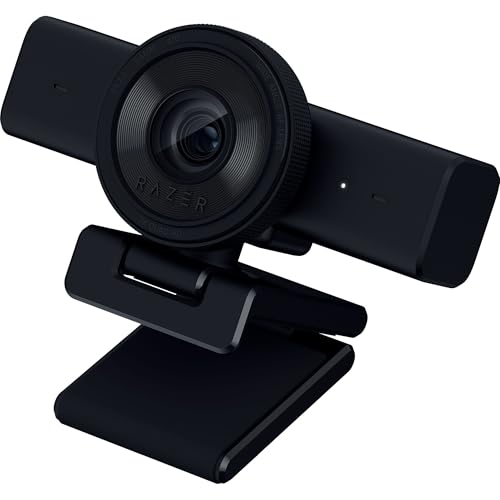
The Razer Kiyo V2 X pushes the resolution ceiling for webcams in 2026 with native 1440p output at 60 frames per second — a significant leap over standard 1080p cameras that makes your stream face cam look genuinely sharp even on larger displays. Whether you're in the middle of an intense gaming session, hosting a marathon variety stream, or presenting a product unboxing, the extra resolution headroom means viewers get crisp, detailed footage with smooth, natural motion. The wide-angle lens captures an expansive view of your setup without excessive distortion, making it ideal for desk setups where you want to show more than just your face. On Linux, the Kiyo V2 X is UVC-compliant and works plug-and-play — OBS, Streamlabs, Discord, and Zoom all detect it without any driver installation.
Fast, accurate autofocus is another headline feature. The camera tracks your face reliably through movement — leaning in, turning to look at a second monitor, or reaching across the desk — without hunting or losing focus. This responsiveness makes it feel more like a proper camera than a webcam, keeping you sharp and in focus no matter what you're doing during a stream. The integrated privacy shutter is a genuinely useful physical feature: when you're done streaming, you slide it shut and nothing can capture video even if software has the camera open. No tape, no sticky notes, no software workaround needed.
Razer Synapse software offers intuitive presets and precise color/lighting adjustments, but like most manufacturer software it's not available on Linux. V4L2 controls via command line fill the gap adequately for most users. The built-in microphone performs well for a webcam-integrated solution — clear voice capture with reasonable background noise reduction that works fine for casual streaming, though dedicated microphones remain the better choice for professional audio. The Kiyo V2 X is a compelling option for any Linux gamer who wants their stream camera to match the high-resolution quality of their gameplay content.
Pros:
- Native 1440p at 60fps delivers the sharpest streaming face cam quality in this guide
- Fast, accurate autofocus keeps you sharp through movement and position changes
- Integrated physical privacy shutter for reliable camera blocking
Cons:
- Razer Synapse software unavailable on Linux — rely on V4L2 controls
- 1440p streaming requires substantial bandwidth and encoding horsepower
6. Microsoft LifeCam Cinema — Best for Video Conferencing
The Microsoft LifeCam Cinema is a no-frills business webcam that prioritizes reliability and video conferencing suitability above all else. Offering 720p HD widescreen video at up to 30fps, it won't win any awards for resolution in 2026, but what it delivers is consistent, dependable performance that works perfectly for daily standups, client calls, and remote team meetings. The high-precision glass element lens with TrueColor technology produces natural skin tones and accurate colors in well-lit environments, and the ClearFrame technology delivers smooth, detailed video with minimal motion artifacts. On Linux, it's a fully UVC-compliant device that works immediately on Ubuntu, Fedora, Debian, and all other major distributions without any setup.
The noise-cancelling microphone is a genuine highlight for a webcam at this price. It does a credible job suppressing keyboard noise, room echo, and background hum — the kinds of sounds that make video calls frustrating for everyone on the other end. The LifeCam Cinema's narrow design mounts easily on laptop screens and desktop monitors with equal stability. AutoFocus means the camera stays sharp as you lean in or out, and the universal attachment foot adjusts to fit different screen thicknesses securely. For Linux users in corporate or remote-work environments who need a camera that just works on Teams, Zoom, or Google Meet, the LifeCam Cinema is a practical, proven choice.
At its price point, the main limitations are resolution and low-light capability. 720p is noticeably softer than 1080p cameras, and in poorly lit rooms the image can look muddy and noisy. If your workspace is well-lit and you're primarily using the camera for meetings rather than streaming or recording, these trade-offs rarely matter in practice. For a reliable, affordable video conferencing camera with good microphone performance on Linux, the LifeCam Cinema earns its spot on this list.
Pros:
- Noise-cancelling microphone performs well for clear, professional call audio
- World-class glass element optics with TrueColor and AutoFocus for accurate, sharp video
- Excellent Linux compatibility with immediate UVC recognition on all major distributions
Cons:
- 720p resolution looks noticeably softer than 1080p alternatives on larger displays
- Low-light performance is below average — a well-lit environment is recommended
7. Logitech Brio 100 — Best Entry-Level Pick
The Logitech Brio 100 rounds out our list as the best entry-level webcam for Linux users in 2026. Don't let its budget positioning fool you — this camera packs genuine 1080p Full HD resolution into one of the most affordable packages on the market, delivering clear, sharp video that punches well above what you'd expect at this price. The RightLight automatic light balancing system boosts brightness by up to 50% compared to previous-generation Logitech webcams, reducing shadows and producing a more flattering, balanced image even when your room lighting isn't perfectly set up. It's a UVC device, fully Linux-compatible from day one, and recognized instantly on every modern distribution.
The built-in privacy shutter is a notable inclusion for an entry-level camera — slide it closed and you have a physical guarantee that the lens is blocked, no software or settings required. The built-in omnidirectional microphone captures clear voice audio for calls and conferencing, making this a complete solution for anyone setting up their first remote-work or study-from-home station. A pleasant surprise for gamers: the Brio 100 is compatible with Nintendo Switch 2's new GameChat mode, which opens an unexpected use case beyond standard PC video calling.
For Linux users who are new to webcams, building a home office setup, or simply want a reliable 1080p camera without spending much, the Brio 100 is the obvious starting point. It lacks the advanced sensors, high frame rates, and adjustable fields of view found in premium options, but for everyday meetings, casual streaming, and general video communication it performs admirably. The clean white design (available in additional colors) adds a modern touch to any desk setup. If your needs are straightforward and your budget is limited, start here — you won't be disappointed.
Pros:
- Full HD 1080p at an entry-level price point — excellent value for the image quality delivered
- RightLight automatic exposure boosts brightness significantly compared to older Logitech webcams
- Physical privacy shutter included and compatible with Nintendo Switch 2 GameChat mode
Cons:
- Limited to 30fps — no 60fps mode for smooth streaming
- Omnidirectional microphone picks up more room noise than directional alternatives
Buying Guide: How to Choose the Best Webcam for Linux
Linux Compatibility: UVC Is Non-Negotiable
The single most important factor when buying a webcam for Linux is UVC (USB Video Class) compliance. UVC is an open standard that allows USB video devices to communicate with the operating system without proprietary drivers — think of it as the "plug-and-play" standard for webcams. Every camera on this list is UVC-compliant, which means the Linux kernel's built-in uvcvideo driver handles them automatically. You'll see the camera appear as /dev/video0 (or similar) immediately after plugging it in, ready to use with any V4L2-compatible application including OBS Studio, Cheese, guvcview, Firefox, Chromium, Zoom, Microsoft Teams, and Google Meet. Be cautious of webcams that advertise proprietary "AI features" with dedicated software — those features often require manufacturer software that doesn't run on Linux, and in rare cases the camera itself may not function without it.
Resolution and Frame Rate: Match Your Use Case
Resolution and frame rate should be chosen based on what you actually do. For everyday video conferencing on Zoom, Teams, or Google Meet, 1080p at 30fps is the sweet spot — most platforms cap incoming video at 1080p anyway, so paying for 4K delivers no practical benefit in calls. If you stream or record tutorial videos where image quality is scrutinized closely, stepping up to 1080p at 60fps (C922 Pro, Elgato Facecam MK.2) delivers noticeably smoother motion. For gaming streams or high-motion content, the Razer Kiyo V2 X's 1440p at 60fps is a genuine visual upgrade. The Logitech Brio 4K's 4K output is useful if you record footage that will be edited, color-graded, or reframed in post-production. Budget buyers who primarily need a camera for calls can comfortably choose 720p or 1080p at 30fps without any practical trade-off.
Low-Light Performance and Sensor Quality
The camera sensor is what ultimately determines image quality in challenging lighting conditions. Webcams with larger sensors, wider apertures, and advanced image signal processors handle dim rooms, backlit scenes, and mixed lighting dramatically better than budget options. The Elgato Facecam MK.2's Sony STARVIS sensor is the gold standard at this price tier for low-light performance. Logitech's RightLight technology in the Brio 4K and Brio 100 uses software-driven automatic exposure adjustment to compensate for backlighting and glare — effective, though not quite as capable as a premium hardware sensor. If you work in a dim environment or sit in front of a bright window, investing in a camera with better low-light handling pays dividends every day in meeting quality and professionalism.
Microphone Quality and Audio Considerations
Most webcams include built-in microphones as a convenience feature, but audio quality varies widely. Noise-cancelling microphones (Microsoft LifeCam Cinema, Logitech Brio 4K) do a meaningful job reducing keyboard clatter and room ambience. Omnidirectional microphones (Logitech Brio 100, C920) are less directional and pick up more room noise. For occasional meetings and casual use, webcam microphones are entirely adequate. For regular streaming, YouTube production, podcasting, or any scenario where audio quality genuinely matters, a dedicated USB condenser microphone will deliver substantially better results regardless of which webcam you choose. Note that the Elgato Facecam MK.2 deliberately omits a built-in microphone on the assumption that creators already have dedicated audio solutions — a reasonable trade-off for its intended audience.
Frequently Asked Questions
Do these webcams work on Linux without installing extra drivers?
Yes — every webcam on this list is UVC (USB Video Class) compliant, which means the Linux kernel's built-in uvcvideo driver handles them automatically. Plug any of these cameras into a USB port running Ubuntu, Fedora, Arch, Debian, Pop!_OS, or virtually any modern Linux distribution, and it will appear as a standard V4L2 video device (/dev/video0) immediately. No manufacturer driver packages, PPAs, or kernel modules are required. All V4L2-compatible applications including OBS Studio, Cheese, guvcview, Firefox, Zoom, Teams, and Google Meet will detect and use the camera without any additional setup.
Can I adjust webcam settings like brightness and contrast on Linux?
Absolutely. The standard Linux tool for controlling webcam settings from the command line is v4l2-ctl, part of the v4l-utils package. You can use it to query available controls (v4l2-ctl --list-ctrls) and set values for brightness, contrast, saturation, hue, exposure, white balance, and more. For a graphical interface, applications like guvcview and Cheese provide sliders for common settings. OBS Studio also exposes many V4L2 controls through its camera source properties. The specific controls available depend on the camera model — premium cameras like the Logitech Brio 4K and Elgato Facecam MK.2 expose more controls than budget options.
Will proprietary features like background replacement work on Linux?
Manufacturer-provided software features — Logitech Capture, Razer Synapse, Elgato Camera Hub — generally do not run on Linux natively. However, the Linux ecosystem has excellent open-source alternatives. OBS Studio with the obs-backgroundremoval plugin provides AI-powered virtual background replacement that rivals proprietary solutions. The v4l2loopback kernel module creates a virtual webcam device, allowing you to pipe OBS output (including virtual backgrounds) into any application like Zoom or Teams as if it were a real camera. Most Linux users find that the open-source tooling actually provides more flexibility and control than manufacturer software.
What is the best webcam for Linux video conferencing in 2026?
For most remote workers and professionals, the Logitech C920 or Logitech Brio 100 represent the best value-to-quality ratio for video conferencing on Linux. Both deliver 1080p Full HD video, work plug-and-play on any Linux distribution, and perform reliably in well-lit home office environments. If you spend many hours per day on video calls and want noticeably better image quality and low-light performance, stepping up to the Logitech Brio 4K is worthwhile — its RightLight 3 automatic exposure is the best in class for handling backlit scenes during meetings. The Microsoft LifeCam Cinema is a solid choice if superior microphone noise-cancellation is your top priority.
Which webcam should I choose for streaming on Linux in 2026?
For streaming, the Logitech C922 Pro Stream Webcam (Renewed) offers the best combination of Linux compatibility, streaming performance, and value — its 1080p at 60fps output with superior low-light adjustment makes face cam footage look smooth and professional at a reasonable price. Step up to the Elgato Facecam MK.2 if you want premium Sony sensor image quality, HDR performance, and PTZ control for a more cinematic look. The Razer Kiyo V2 X is the choice if you want 1440p at 60fps — the highest resolution option on this list — though you'll need a capable CPU/GPU to encode it at streaming bitrates. All three work seamlessly with OBS Studio on Linux.
How do I use a webcam as a virtual camera for Zoom or Teams on Linux?
The standard approach on Linux is to install the v4l2loopback kernel module, which creates a virtual video device. You then configure OBS Studio to output to this virtual device using the obs-v4l2sink plugin (or the built-in Virtual Camera feature in OBS 26+). Once set up, Zoom, Teams, Google Meet, and any other application that reads from V4L2 devices will see your OBS output as a regular webcam. This setup lets you use virtual backgrounds, scene switching, overlays, and filters in OBS while presenting a polished camera feed to your video conferencing application. Most popular Linux distributions have v4l2loopback available through their package managers.
Buy on Walmart
- Logitech HD Pro Webcam C920, Widescreen Video Calling and Re — Walmart Link
- logitech C922 Pro Stream Webcam 1080P Camera for HD Video St — Walmart Link
- Logitech Brio 4K Webcam, Video Calling, Noise-Cancelling mic — Walmart Link
- Elgato Facecam MK.2 – Premium Full HD 1080p Webcam for Strea — Walmart Link
- Razer Kiyo V2 X Streaming Webcam: 1440p 60 FPS - Auto Focus — Walmart Link
- Microsoft LifeCam Cinema Webcam for Business - Black with bu — Walmart Link
- Logitech Brio 100 Full HD 1080p Webcam for Meetings, Streami — Walmart Link
Buy on eBay
- Logitech HD Pro Webcam C920, Widescreen Video Calling and Re — eBay Link
- logitech C922 Pro Stream Webcam 1080P Camera for HD Video St — eBay Link
- Logitech Brio 4K Webcam, Video Calling, Noise-Cancelling mic — eBay Link
- Elgato Facecam MK.2 – Premium Full HD 1080p Webcam for Strea — eBay Link
- Razer Kiyo V2 X Streaming Webcam: 1440p 60 FPS - Auto Focus — eBay Link
- Microsoft LifeCam Cinema Webcam for Business - Black with bu — eBay Link
- Logitech Brio 100 Full HD 1080p Webcam for Meetings, Streami — eBay Link
 |
 |
 |
 |

About Diego Martinez
Diego Martinez is Ceedo's webcam and streaming hardware writer. He started streaming on Twitch in 2014 and grew a small audience covering indie game development, which led him to take camera and microphone equipment far more seriously than the average viewer. Diego studied film production at California State University, Long Beach and worked as a freelance video editor before pivoting to writing about consumer AV gear. He has tested webcams from Logitech, Razer, Elgato, AVerMedia, and dozens of smaller brands and has a particular interest in low-light performance, autofocus speed, and built-in noise suppression. He still streams weekly from his home studio in San Diego.