 ee
eeLaptops ›
Best Laptops for Android Development in Android Studio

You have just opened Android Studio for the first time, launched a virtual device emulator, and watched your machine grind to a near halt — the fan screaming, the UI unresponsive, the Gradle build still running forty minutes after you hit the button. It is a familiar scenario for any developer who has tried to run a professional-grade IDE on underpowered hardware. Android Studio is one of the most resource-intensive development environments available today, and choosing the right machine for it in 2026 is not a decision you want to make lightly.
The demands are specific: you need raw CPU performance for fast Gradle builds, sufficient RAM to keep Android Studio, an AVD emulator, a browser, and a terminal open simultaneously without swapping to disk, and storage speeds that do not penalize you every time you sync your project. Graphics matter too — the built-in Layout Editor and the emulator's GPU acceleration both benefit from a capable GPU. This guide evaluates seven of the strongest laptops available in 2026 across every relevant dimension for Android development work.
Whether you are a solo indie developer, a senior engineer on a large team, or a student building your first app, the right laptop is the single most impactful investment you can make in your daily productivity. The seven picks below cover every budget and use case, from the most portable ultrabooks to the most powerful mobile workstations on the market.
Contents
- Editor's Recommendation: Top Picks of 2026
- Detailed Product Reviews
- Apple 2026 MacBook Pro M5 Pro — Best Overall
- Dell XPS 15 7590 — Best Renewed Value
- Lenovo ThinkPad X1 Carbon Gen 13 — Best Business Ultrabook
- ASUS Vivobook S16 AI — Best OLED Display
- MSI GE76 Raider — Most Powerful
- Acer Swift 3 Intel Evo — Best Budget Portable
- HP Envy 16 WQXGA — Best Multimedia Workstation
- Buying Guide: How to Choose the Best Laptop for Android Development
- Frequently Asked Questions
- Key Takeaways
Editor's Recommendation: Top Picks of 2026
- #PreviewProductRating
- Bestseller No. 1
 Rating:

- Bestseller No. 2
 Rating:
- Bestseller No. 3
 Rating:
 - Bestseller No. 4
 Rating:
- Bestseller No. 5
 Rating:
 - Bestseller No. 6
 Rating:
 - Bestseller No. 7
 Rating:

Detailed Product Reviews
1. Apple 2026 MacBook Pro M5 Pro — Best Overall
The 2026 Apple MacBook Pro with the M5 Pro chip is the single most capable machine for Android development that money can buy at this form factor. The 15-core CPU delivers Gradle build speeds that are, in practice, two to three times faster than comparably priced Intel or AMD machines. The 24GB of unified memory means you can run Android Studio, a full AVD emulator stack, a browser with thirty tabs, and a terminal session — simultaneously — without a single stutter. Apple silicon's memory architecture eliminates the bandwidth bottleneck that has historically hampered RAM-heavy IDE workloads.
The 14.2-inch Liquid Retina XDR display with ProMotion adaptive refresh renders the Layout Editor's UI at a level of clarity that genuinely changes how you review pixel-level design work. Battery life is exceptional — expect twelve to fifteen hours of active coding work, which means you are not anchored to a power outlet during long development sessions. The 1TB SSD is fast enough that cold Gradle builds and sync operations feel nearly instantaneous. Wi-Fi 7 connectivity ensures that large dependency downloads and Git operations over your network complete in seconds rather than minutes.
The sole caveat for Android developers is the platform difference: Android Studio on macOS requires the Rosetta layer for some legacy tooling, though the 2026 native ARM builds of most major SDK components eliminate this concern for most workflows. If your team also does any Xcode or cross-platform Flutter work, this machine becomes even more justified.
Pros:
- M5 Pro chip delivers class-leading single-threaded and multi-threaded CPU performance for Gradle
- 24GB unified memory handles emulator + IDE + browser simultaneously with headroom to spare
- Liquid Retina XDR display is exceptional for UI and layout design work
- All-day battery life — twelve to fifteen hours under real development workloads
- Ultra-fast 1TB SSD minimizes build artifact and sync latency
- Wi-Fi 7 for rapid SDK and dependency downloads
Cons:
- Premium price point is the highest on this list
- macOS requires ARM-native toolchain for maximum performance — some legacy CLI tools still need Rosetta
2. Dell XPS 15 7590 (Renewed) — Best Renewed Value
The Dell XPS 15 7590 in its renewed configuration delivers a 4K OLED-class display, a 9th Gen Intel Core i7-9750H, 16GB of DDR4 RAM, a 512GB SSD, and dedicated NVIDIA GTX 1650 graphics — all at a price point that undercuts every new machine on this list. For developers on a strict budget who still need a large, high-resolution screen and a competent dedicated GPU for Android emulator acceleration, this is the most sensible entry point available in 2026. The 15.6-inch 4K panel makes the Layout Editor genuinely pleasant to work in for extended sessions.
The i7-9750H's six cores hold up well against modern Android Studio workloads. Gradle builds run comfortably, and the 512GB SSD is fast enough that project sync times remain tolerable. The GTX 1650 with 4GB of VRAM provides adequate GPU acceleration for Android emulators and handles Android GPU rendering inspection without issue. The 16GB RAM is the practical minimum for running a full emulator alongside the IDE — you will feel pressure if you work with multiple emulators or keep a large number of browser tabs open simultaneously.
The key consideration here is the "Renewed" designation. Dell Certified Renewed units go through a verified inspection and refurbishment process, and the machines that pass are generally reliable. However, battery health will not match a brand-new unit. If you spend most of your time at a desk, that trade-off is acceptable. If you need sustained portability, prioritize a newer machine instead.
Pros:
- 4K Ultra HD 15.6-inch display at a significantly reduced price
- NVIDIA GTX 1650 4GB dedicated GPU accelerates AVD emulation
- i7-9750H six-core CPU handles standard Gradle build workloads competently
- 16GB RAM is adequate for single-emulator Android Studio sessions
- Best price-to-screen-quality ratio on this list
Cons:
- Battery health is degraded versus new — poor choice for untethered work
- 9th Gen Intel CPU is aging and will feel the gap against newer architectures on heavy builds
- 16GB RAM is tight if you run multiple emulators or large projects
3. Lenovo ThinkPad X1 Carbon Gen 13 — Best Business Ultrabook
The ThinkPad X1 Carbon Gen 13 is the definitive choice for enterprise Android developers who need maximum portability without sacrificing the RAM and storage performance required for serious IDE work. The Intel Core Ultra 7 255U processor — a 12-core chip that boosts to 5.2GHz — handles Gradle compilation and incremental builds with efficiency that significantly outpaces the older Core i7 generation. The 32GB of LPDDR5 RAM is the standout specification: you can run a full-resolution emulator, Android Studio with multiple modules open, a test runner, and a browser without ever approaching memory pressure. This is the RAM headroom that transforms developer productivity.
The 1TB SSD makes project sync, cache warming, and build artifact writes feel instantaneous. The 14-inch WUXGA touchscreen at 500 nits gives you enough brightness for outdoor or well-lit office use, and the 100% sRGB accuracy is sufficient for reviewing app UI on a calibrated reference. The included 7-in-1 USB-C hub is a meaningful addition — it gives you HDMI, USB-A, SD card, and additional USB-C ports without requiring a separate purchase. For developers who connect to external monitors and peripherals at a desk, this is a genuine convenience.
The X1 Carbon's keyboard remains the best in class among business ultrabooks. Long coding sessions are materially more comfortable than on any competing thin-and-light. The 1080p IR camera supports Windows Hello face unlock, and the fingerprint reader provides fast, secure login in environments where physical security matters. The Wi-Fi 6E radio ensures stable, high-throughput connectivity in congested office environments.
Pros:
- 32GB LPDDR5 RAM is the most generous configuration in the ultrabook category — zero memory pressure in demanding development workflows
- Intel Core Ultra 7 255U with NPU delivers AI-assisted IDE features and fast incremental builds
- Best-in-class ThinkPad keyboard for extended coding sessions
- 1TB SSD for fast project and build storage
- Bundled 7-in-1 USB-C hub adds immediate connectivity value
- 14-inch touchscreen display with anti-glare coating and 500 nits brightness
Cons:
- Integrated Intel graphics limits GPU-intensive emulator rendering compared to dedicated GPU machines
- WUXGA (1920x1200) resolution is adequate but not exceptional at this price tier
4. ASUS Vivobook S16 AI — Best OLED Display
The ASUS Vivobook S16 AI combines a specification sheet that would have been considered extreme just two years ago — Intel Core Ultra 9 285H with 16 cores, 32GB DDR5, 1TB SSD — with a 16-inch 2.8K OLED display running at 120Hz and 600 nits HDR peak brightness at 100% DCI-P3 color coverage. For Android developers who also perform UI design reviews, produce design documentation, or do any amount of visual QA work, the OLED panel is a fundamentally different working experience compared to standard IPS screens. Colors are accurate. Blacks are absolute. The display alone justifies this machine in UI-heavy workflows.
The Core Ultra 9 285H is a 16-core H-series processor — the highest-TDP category in Intel's 2026 mobile lineup — which means Gradle build times are genuinely fast. The 32GB DDR5 configuration handles parallel emulator instances, multi-module project compilations, and memory-hungry profiling sessions without issue. The 2.8K resolution at 16 inches provides sufficient pixel density for the Android Studio Layout Editor to render UI previews with precision that 1080p panels simply cannot match.
The integrated Intel Arc graphics handles Android emulator GPU acceleration competently. For pure development work, you will not miss a discrete NVIDIA GPU — the Arc handles the emulator's OpenGL and Vulkan rendering paths without complaint. The 120Hz refresh rate also makes the IDE and OS feel perceptibly smoother during long sessions, which is a minor but genuine ergonomic benefit over 60Hz panels.
Pros:
- 2.8K 120Hz OLED at 100% DCI-P3 — the best display on this list for UI and design work
- Intel Core Ultra 9 285H 16-core CPU delivers fast Gradle builds and project sync
- 32GB DDR5 RAM handles multi-emulator and multi-module workflows
- 600 nits HDR brightness for usability in bright environments
- 1TB SSD for project storage and build caching
Cons:
- No discrete NVIDIA GPU — GPU-intensive emulator profiles may expose integrated graphics limits
- High-TDP H-series processor can reduce battery life under sustained build loads
5. MSI GE76 Raider — Most Powerful Raw Performance
The MSI GE76 Raider is not a subtle machine, and it is not designed to be. The 11th Gen Intel Core i9-11980HK, the NVIDIA GeForce RTX 3080, and the 32GB of DDR4 RAM combine to produce a development workstation that runs Android Studio as though it has unlimited headroom. Gradle builds on large enterprise projects complete quickly. The emulator runs at full GPU acceleration without competition from the CPU. Parallel test suites, connected device debugging, and continuous background sync all proceed without resource contention.
The 17.3-inch 360Hz FHD display is technically overspecified for development work — you do not need 360Hz to code — but the panel is bright, accurate enough for UI QA, and large enough that you can tile the IDE, the emulator, and a terminal side by side without cramping. The RTX 3080 accelerates not just the emulator's GPU rendering but also ML model inference and training, which is increasingly relevant as more Android apps incorporate on-device AI features that you need to test during development.
The trade-offs are real and significant: this machine is large, heavy, and loud under load. Its battery life is measured in hours under sustained build workloads, not half-days. It requires a power outlet nearby at all times for serious work. If your development environment is a fixed desk with access to power, the GE76 Raider delivers unmatched raw performance. If you need to work mobile, look at the MacBook Pro or the ThinkPad instead.
Pros:
- RTX 3080 delivers the strongest GPU-accelerated emulator and ML inference performance on this list
- Core i9-11980HK pushes the fastest Gradle build times of any Intel machine reviewed here
- 32GB DDR4 RAM with no practical ceiling for parallel Android development tasks
- 17.3-inch display provides generous screen real estate for multi-pane IDE layouts
- 1TB NVMe SSD for fast project storage and build caching
Cons:
- Heavy chassis and aggressive cooling system make this a desk-bound machine
- Battery life is insufficient for untethered development — expect two to four hours under load
- Fan noise under sustained Gradle builds is significant
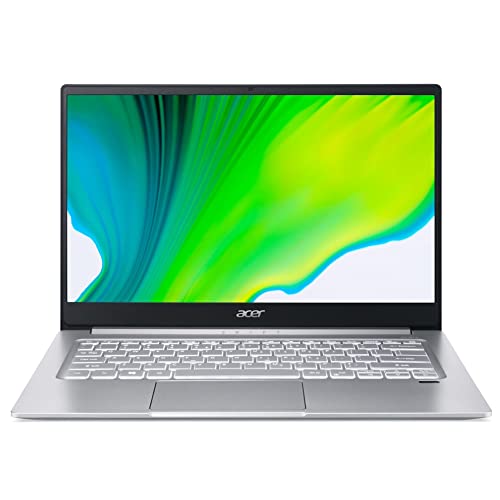
6. Acer Swift 3 Intel Evo — Best Budget Portable
The Acer Swift 3 Intel Evo is the recommendation for developers who prioritize portability and budget above all else. The Intel Core i7-1165G7 — a 4-core, 8-thread Tiger Lake chip with a 4.7GHz boost clock — handles light-to-medium Android Studio workloads capably. The Intel Iris Xe integrated graphics are the strongest integrated GPU in their generation and provide functional Android emulator acceleration for standard API levels. The 14-inch Full HD IPS panel at 100% sRGB is color-accurate enough for UI development review at this price tier.
The Intel Evo certification guarantees specific performance minimums: the machine must wake from sleep in under one second, achieve a minimum of nine hours of battery life in real-world use, and maintain responsive performance under sustained multi-threaded workloads. These guarantees matter for a developer who needs reliability across a full working day. The backlit keyboard and fingerprint reader are standard productivity conveniences that the Intel Evo program mandates.
The 8GB of LPDDR4X RAM is the single most limiting specification on this machine. You can run Android Studio with a single emulator, but multitasking headroom is narrow. If you plan to run two emulators simultaneously, or work on a large multi-module project, the memory ceiling will cost you time. The 256GB NVMe SSD is also tight for storing multiple Android project workspaces, SDK components, and Android Virtual Device images. A USB-C or Thunderbolt 4 external SSD solves the storage problem economically. For a developer on a strict budget who works primarily with single-device testing on a smaller codebase, the Swift 3 is a capable, portable, and affordable entry point.
Pros:
- Intel Evo certified — guaranteed battery life, instant wake, and sustained performance
- Lightweight and portable — ideal for on-the-go development and client meetings
- Intel Core i7-1165G7 handles single-emulator Android Studio sessions reliably
- Intel Iris Xe provides functional emulator GPU acceleration without a dedicated GPU premium
- 100% sRGB Full HD display is color-accurate for UI development at this price
- Lowest price point on this list for a new machine
Cons:
- 8GB RAM is the hard ceiling — multi-emulator or large-project workflows will struggle
- 256GB SSD fills quickly with SDK images, AVD images, and project files
- 4-core CPU shows its limits on heavy Gradle builds for large codebases
7. HP Envy 16 WQXGA — Best Multimedia Workstation
The HP Envy 16 occupies a compelling middle ground between the MSI GE76 Raider's brute-force performance and the ThinkPad X1 Carbon's refined portability. The 13th Gen Intel Core i7-13700H is a 14-core, 20-thread processor that boosts to 5.0GHz, and its combination of Performance and Efficiency cores makes it exceptionally well-suited to Android development's mixed workload pattern: heavy Gradle compilation on the P-cores, light background tasks on the E-cores. The NVIDIA GeForce RTX 4060 is the most current discrete GPU on this list, delivering hardware-accelerated Android emulator rendering, Vulkan API testing, and on-device ML inference profiling at full fidelity.
The 16-inch WQXGA (2560x1600) touchscreen at 120Hz and 400 nits is one of the strongest displays in the sub-premium category. The 88.7% screen-to-body ratio and micro-edge bezel make the panel feel immersive for full-screen Android UI prototyping and review. The 16GB RAM configuration is the baseline for professional Android Studio work, though power users working on large multi-module projects will want to confirm that the unit supports memory expansion. The 1.5TB combined storage package — 1TB PCIe SSD plus a bundled HP P500 512GB portable SSD — gives you genuine long-term storage flexibility at no additional cost.
The Bang & Olufsen quad speakers are genuinely premium-tier audio for a laptop. If your development work involves audio testing — ringtones, notification sounds, in-app audio — the HP Envy 16's speakers provide a more accurate reference than any other machine on this list. The included Wi-Fi 6 ensures strong wireless throughput, and the backlit keyboard is comfortable for extended coding sessions. For developers who want one machine to handle Android Studio, video calls, light creative work, and multimedia review without compromise, the HP Envy 16 is the most balanced pick of 2026.
Pros:
- Core i7-13700H 14-core hybrid CPU excels at the mixed-load pattern of IDE plus build plus emulator
- RTX 4060 provides the most current discrete GPU architecture for emulator and ML acceleration
- 2560x1600 WQXGA 120Hz touchscreen is sharp and smooth for UI development review
- 1.5TB combined storage (1TB internal + 512GB portable SSD) gives excellent long-term capacity
- Bang & Olufsen quad speakers are the best audio reference on this list
- Wi-Fi 6 for reliable high-throughput wireless connectivity
Cons:
- 16GB RAM is the configuration floor — confirm upgrade path before purchasing for large-project workflows
- 400 nits brightness is adequate but not exceptional for outdoor use
Buying Guide: How to Choose the Best Laptop for Android Development
RAM: The Single Most Important Specification
Android Studio is the most RAM-intensive development IDE in widespread use. The base memory requirement for a functional development environment — IDE, one emulator, one browser window — is 16GB. For professional-grade work with multiple emulator instances, large multi-module projects, or parallel test runners, 32GB is the correct target. The considerations below apply directly to your purchasing decision:
- 16GB: Minimum for single-emulator development. Expect memory pressure on large projects.
- 24GB: The Apple unified memory architecture at this tier outperforms 32GB conventional RAM in many IDE workloads.
- 32GB: Professional standard for enterprise-scale codebases and multi-emulator testing.
- Verify upgrade path: Some ultrabooks solder RAM to the board. Confirm expandability before committing if you anticipate needing more headroom later.
CPU Architecture and Build Performance
Gradle is the performance bottleneck for every Android developer. CPU architecture directly determines how long you wait for each build cycle. The key variables are core count, single-thread boost frequency, and the instruction set efficiency of the architecture itself.
- Apple M5 Pro: The fastest mobile CPU for Gradle build performance in 2026. Apple silicon's architecture delivers exceptional single-thread and multi-thread numbers simultaneously.
- Intel Core Ultra 7/9 (Arrow Lake): The current Intel mobile flagship delivers strong hybrid-core performance. The E-core design keeps background tasks from stealing P-core time during builds.
- Intel 13th Gen H-series: 14 cores at 5.0GHz boost. Excellent for sustained workloads. Marginally behind the Core Ultra architecture on efficiency.
- Intel 11th Gen i9 (Tiger Lake-H): Still competitive for heavy builds. The GE76 Raider demonstrates this architecture's longevity under sustained load.
- Intel 11th Gen U-series: 4-core configurations like the i7-1165G7 are adequate for solo developers on moderate codebases, but show their limits at enterprise scale.
Storage Speed and Capacity
Android Studio's performance is tightly coupled to storage throughput. The build system writes large intermediate artifacts to disk on every incremental build. Slow storage turns acceptable Gradle times into unacceptable ones. All seven machines reviewed here use NVMe SSDs, which is the correct minimum. The additional capacity considerations are:
- 256GB: Insufficient for professional development. Android SDK, emulator images, and two mid-size projects can exhaust this within months.
- 512GB: Acceptable minimum. Requires disciplined storage management and external backup.
- 1TB: Recommended for most developers. Sufficient for full SDK installations, multiple emulator images, and several concurrent project workspaces.
- PCIe Gen 4 vs Gen 3: Gen 4 drives reduce build artifact write times meaningfully on very large projects. Prioritize Gen 4 if your codebase exceeds 500,000 lines.
Display and Ergonomics for Long Development Sessions
You spend more time looking at your display than any other component. The development-specific display considerations differ from general consumer use:
- Resolution: 2K or higher is preferred. 1080p is functional but limits the amount of code, the emulator preview, and your terminal that you can tile simultaneously without scrolling.
- Color accuracy: 100% sRGB minimum for UI design review. DCI-P3 coverage is a bonus for pixel-precise design QA work.
- Refresh rate: 120Hz makes the IDE and OS feel noticeably smoother during long sessions. It is not essential, but it is a genuine ergonomic improvement.
- Brightness: 400 nits minimum for usable outdoor or bright-office visibility. 500+ nits is preferred if you work near windows.
- Anti-glare coating: Essential for any environment with ambient lighting. Glossy panels introduce fatigue over eight-hour sessions.
Buy on Walmart
- Apple 2026 MacBook Pro Laptop with Apple M5 Pro chip with 15 — Walmart Link
- Dell XPS 15 7590-15.6" 4K - i7-9750H - NVIDIA GTX 1650-16GB — Walmart Link
- Lenovo ThinkPad X1 Carbon Gen 13 Business AI Laptop, Intel C — Walmart Link
- ASUS Vivobook S16 AI PC Laptop 16" 2.8k OLED 120Hz (600nits, — Walmart Link
- msi GE76 Raider 17.3" 360Hz FHD Display, Intel Core i9-11980 — Walmart Link
- acer Swift 3 Intel Evo Thin & Light Laptop, 14" Full HD, Int — Walmart Link
- HP Envy 16 WQXGA(2560 x 1600) Touch Laptop | Intel Core i7-1 — Walmart Link
Buy on eBay
- Apple 2026 MacBook Pro Laptop with Apple M5 Pro chip with 15 — eBay Link
- Dell XPS 15 7590-15.6" 4K - i7-9750H - NVIDIA GTX 1650-16GB — eBay Link
- Lenovo ThinkPad X1 Carbon Gen 13 Business AI Laptop, Intel C — eBay Link
- ASUS Vivobook S16 AI PC Laptop 16" 2.8k OLED 120Hz (600nits, — eBay Link
- msi GE76 Raider 17.3" 360Hz FHD Display, Intel Core i9-11980 — eBay Link
- acer Swift 3 Intel Evo Thin & Light Laptop, 14" Full HD, Int — eBay Link
- HP Envy 16 WQXGA(2560 x 1600) Touch Laptop | Intel Core i7-1 — eBay Link
Frequently Asked Questions
How much RAM do I need to run Android Studio with an emulator in 2026?
The practical minimum for running Android Studio alongside a single Android Virtual Device emulator is 16GB. Google's official documentation lists 8GB as the system minimum, but that recommendation does not account for a browser, terminal, or any background processes running concurrently. For professional development work with multiple emulator profiles or large multi-module Gradle projects, 32GB eliminates all memory-related performance constraints and is the recommended configuration for 2026 development environments.
Is a dedicated GPU necessary for Android development?
A dedicated GPU is not strictly required, but it provides measurable benefits in specific workflows. The Android emulator uses GPU acceleration via OpenGL and Vulkan to render the virtual device's display — a dedicated GPU accelerates this rendering and reduces emulator CPU overhead. For standard UI development and testing, a strong integrated GPU such as Intel Iris Xe or Apple's M-series GPU is sufficient. A dedicated GPU becomes a genuine advantage when you are profiling GPU-heavy apps, testing Vulkan rendering pipelines, or performing on-device ML model inference testing with GPU backends.
Can I run Android Studio on an Apple Silicon MacBook in 2026?
Yes. Android Studio has been fully native on Apple silicon since version Hedgehog. The 2026 release of the M5 Pro MacBook Pro runs Android Studio natively on ARM, and the ARM build of Android Studio includes a native ARM Android emulator image that runs without Rosetta. Build performance on Apple silicon is the fastest available in the mobile laptop category. The only residual compatibility concern involves legacy native CLI tools or SDK extensions that have not yet shipped ARM builds — these cases are increasingly rare in 2026 and can be handled with Rosetta on an as-needed basis.
What storage capacity do I need for a full Android development setup?
A complete Android development environment consumes storage across several categories: Android Studio itself and its caches require approximately 10–15GB; the Android SDK with a full set of platform versions and tools occupies 20–40GB depending on what you install; each Android Virtual Device image takes 2–8GB per API level; and your project workspace, Gradle caches, and build artifacts scale with project size. A 512GB SSD represents a functional minimum with careful management. A 1TB SSD is the recommended baseline for professional work that involves multiple project workspaces and a comprehensive SDK installation.
Which laptop on this list is best for a developer who also does UI design work?
The ASUS Vivobook S16 AI is the top recommendation if display quality for UI and design work is a primary requirement. Its 2.8K 120Hz OLED panel with 100% DCI-P3 color coverage and 600 nits HDR brightness delivers color accuracy and contrast that IPS panels cannot match. The Apple MacBook Pro M5 Pro's Liquid Retina XDR display is the second-best option and exceeds the ASUS in peak sustained brightness for outdoor use. If you regularly review design mockups, perform pixel-level UI QA, or produce visual documentation alongside development work, an OLED or XDR panel is a meaningful productivity investment.
Is the Acer Swift 3 powerful enough for professional Android development?
The Acer Swift 3 Intel Evo is adequate for solo developers working on small-to-medium Android projects with a single emulator profile. The Core i7-1165G7 and Intel Iris Xe handle the core IDE workflow competently, and the Intel Evo certification guarantees a minimum battery life and responsiveness standard. The limiting factors are the 8GB RAM ceiling — which creates memory pressure under multi-tasking scenarios — and the 256GB SSD, which fills quickly in a full Android development environment. The Swift 3 is the correct choice only if portability and budget are the primary constraints and your codebase is not large or multi-module in structure.
Key Takeaways
- The Apple 2026 MacBook Pro M5 Pro is the outright best laptop for Android development in 2026, delivering the fastest Gradle builds, exceptional battery life, and 24GB of unified memory that handles every professional workflow without constraint.
- For developers who need maximum RAM and business-grade reliability in an ultrabook, the Lenovo ThinkPad X1 Carbon Gen 13 with 32GB LPDDR5 and a bundled USB-C hub is the definitive portable workstation choice.
- The ASUS Vivobook S16 AI is the strongest option if display quality for UI design and visual QA work is a priority — its 2.8K 120Hz OLED panel at 100% DCI-P3 is the best screen on this list.
- The minimum viable configuration for professional Android Studio work in 2026 is 16GB RAM and a 512GB NVMe SSD — anything below that threshold will cost you build time and developer productivity every single day.
 |
 |
 |
 |

About Priya Anand
Priya Anand covers laptops, tablets, and mobile computing for Ceedo. She holds a bachelor degree in computer science from the University of Texas at Austin and has spent the last nine years writing reviews and buying guides for consumer electronics publications. Before joining Ceedo, Priya worked as a product analyst at a major retailer where she helped curate the laptop and tablet category. She has personally benchmarked more than 200 portable computers and is particularly interested in battery longevity, repairability, and the trade-offs between Windows, macOS, ChromeOS, and Android tablets. Outside of work, she runs a small Etsy shop selling laptop sleeves she sews herself.