 ee
eeHow to Use a Tablet as a Digital Photo Frame
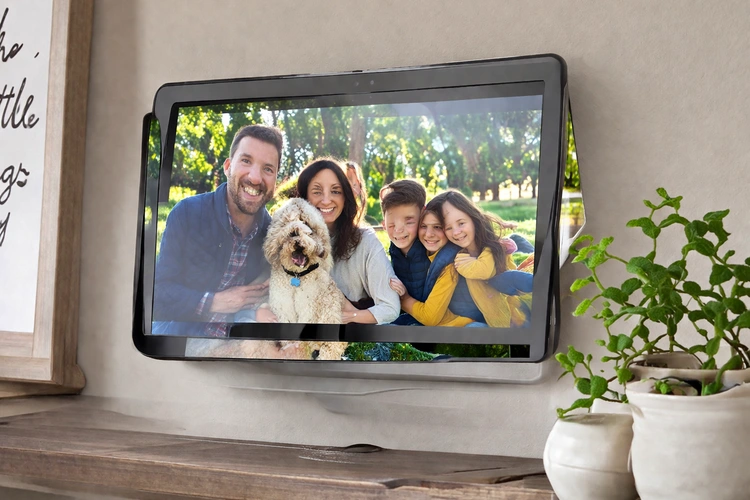
Learning how to use a tablet as a digital photo frame is one of the most practical ways to repurpose aging hardware sitting unused in a drawer. Any spare tablet — from an entry-level Android device to an older iPad — transforms into a high-resolution slideshow display with nothing more than a dedicated app and a continuous power connection. The setup takes under ten minutes, costs nothing beyond hardware already on hand, and delivers image quality that most sub-$100 dedicated frames simply cannot match.
The concept is straightforward: install a photo frame application, configure the slideshow interval and source, connect the charger, and prop the tablet on a stand or mount it on a wall. What separates a mediocre result from an impressive one is the configuration depth most users never explore — from ambient brightness sensors to cloud album syncing and always-on display modes that extend screen lifespan considerably over time.
Contents
Benefits and Trade-offs of Using a Tablet
The tablet-as-frame approach offers a combination of display quality and feature depth that purpose-built digital frames rarely achieve at comparable price points. A mid-range tablet from three or four years ago typically carries a 1920×1200 IPS display, dual speakers, and Wi-Fi connectivity — hardware specifications that a $60 dedicated frame does not approach. According to Wikipedia's entry on digital photo frames, most budget dedicated frames ship with resolutions between 800×480 and 1024×600, a stark contrast to even entry-level tablet panels.
What Tablets Do Better
- Display resolution: Tablet screens routinely exceed 1920×1200 pixels, rendering photographs with sharp detail and accurate color reproduction that budget-tier dedicated frames cannot deliver.
- Cloud connectivity: Applications like Frameo, Nixplay, Google Photos, and Amazon Photos sync albums automatically over Wi-Fi, eliminating the need to manually transfer files via USB or SD card.
- Interactivity: A tablet frame responds to touch — family members can swipe through albums, zoom into individual photos, or leave digital messages without unplugging or reconfiguring anything.
- App ecosystem: Slideshow applications receive regular updates, adding features like weather widgets, clock overlays, and ambient display modes that dedicated frames rarely gain post-purchase.
- Repurposability: The device remains a fully functional tablet between photo-frame duties, remaining useful for video calls, streaming, or reading whenever those needs arise.
Where Dedicated Frames Still Win
Dedicated digital photo frames carry a narrower but legitimate set of advantages over repurposed tablets. Their operating systems are optimized solely for displaying images, meaning startup is instantaneous and notification banners never interrupt a slideshow. High-end dedicated frames from brands like Aura and Meural use matte anti-glare panels specifically engineered for viewing art and photography under varied ambient lighting conditions — a refinement that most glossy tablet screens do not replicate. Power consumption is also lower on average: a purpose-built frame draws roughly 8–15 watts continuously, versus 10–25 watts for a tablet running a display application at moderate brightness.

How to Use a Tablet as a Digital Photo Frame: Beginner to Advanced
The difference between a first-time setup and a fully optimized display comes down to three layers of configuration: operating system display settings, the photo frame application itself, and the physical mounting arrangement. Most users stop at the first layer; the second and third layers are where the experience transforms from acceptable to genuinely impressive, and where the tablet approach decisively outperforms cheaper dedicated alternatives.
The Basic Six-Step Setup
The standard process for converting a tablet into a photo frame follows six clear steps, illustrated in the process diagram below. First, install a dedicated slideshow app — Google Photos' native slideshow, Amazon Photos, or a third-party option like Frameo or Fotoo. Second, grant the app access to a local photo library or a linked cloud album. Third, disable the lock screen timeout by navigating to display settings and setting screen timeout to "Never" or the maximum available value. Fourth, enable "Stay Awake" in developer options on Android devices, which prevents the display from dimming while the charger is connected. Fifth, reduce screen brightness to roughly 40–60 percent to balance visibility against energy consumption and long-term panel health. Sixth, place the tablet on a stand or mount and connect the charger permanently.

For users choosing between platforms before committing to this setup, the iPad vs Android Tablet comparison covers display and software differences that directly affect photo frame performance — including how iOS handles background app refresh differently from Android's developer-mode "Stay Awake" toggle, which is a meaningful operational distinction for always-on installations.
Advanced Features Worth Exploring
- Ambient light automation: Apps like Fotoo and Frameo use the tablet's built-in ambient light sensor to dim the display automatically in darkened rooms, preventing the frame from becoming a distracting light source at night.
- Scheduled power cycling: Android's "Scheduled Power On/Off" feature, available on Samsung, Lenovo, and Amazon Fire tablets, powers the display down during sleeping hours to preserve battery charge cycles over the long term.
- Remote album sharing: Frameo and Nixplay allow family members to push photos directly to the frame from their own smartphones, making the display a living collaborative album rather than a static personal archive.
- Clock and weather overlays: Several slideshow apps layer real-time clock data and current weather conditions over photos, turning the frame into a functional ambient information display rather than a pure photo viewer.
Users managing storage-limited devices should review how to free up storage space on a tablet before loading large photo libraries locally, since local caching by slideshow apps can accumulate several gigabytes over weeks of continuous operation.
What the Setup Actually Costs
The total cost of a tablet photo frame depends primarily on whether suitable hardware is already available or must be purchased specifically for the purpose. The table below breaks down realistic expenditure across four common build scenarios, from zero-cost repurposing to a premium wall-mounted installation.
| Build Scenario | Tablet Cost | Stand / Mount | App Cost | Total Estimate |
|---|---|---|---|---|
| Repurpose spare tablet | $0 (already owned) | $8–$20 | $0–$5 | $8–$25 |
| Budget new purchase | $50–$90 (Amazon Fire HD) | $10–$20 | $0–$5 | $60–$115 |
| Mid-range new purchase | $150–$300 (Samsung Tab A / refurb iPad mini) | $20–$45 | $0–$10/yr | $170–$355 |
| Premium wall installation | $400–$600 (iPad Air / Galaxy Tab S) | $30–$80 (wall mount) | $0–$10/yr | $430–$690 |
Budget-Tier Considerations
The Amazon Fire HD 8 and HD 10 are the most cost-effective purpose-built options for users starting from scratch, with Amazon Photos included free for Prime members and a native slideshow mode built directly into the lock screen interface. The Fire HD 10's 1920×1200 display resolution rivals tablets costing three times as much, making it a compelling photo frame candidate despite its positioning as a budget device. Total system cost for a new Fire HD 10 with a basic stand runs under $100 in most retail configurations.
Mid-Range and Premium Builds
A refurbished iPad mini or a Samsung Galaxy Tab A series device in the $150–$300 range delivers noticeably better color accuracy, a more responsive ambient light sensor, and a longer software support lifecycle. For wall-mounted applications in living rooms or professional reception areas, the premium is justified by display quality alone. Users weighing these options at this price tier will find the iPad vs Samsung Galaxy Tab comparison a useful reference point for evaluating display calibration, build quality, and long-term software update commitments from each manufacturer.
Optimizing for the Best Display Results
App Selection and Display Settings
App choice is the single variable with the greatest impact on overall photo frame quality. The leading options each occupy a distinct niche within the category:
- Google Photos: Best for users with an existing Google library. Slideshow mode activates directly from the app, but lacks scheduling, ambient sensor integration, or clock overlay features.
- Frameo: Best for shared family frames. Remote photo-sending from any household smartphone is simple, and the interface remains approachable even for non-technical users who will manage the display day-to-day.
- Fotoo: Best overall for feature depth. Supports Google Photos, Dropbox, OneDrive, and local storage simultaneously, with advanced transition effects, clock overlays, and scheduled display hours.
- Amazon Photos: Best for Fire tablet owners and Prime subscribers, offering deep OS-level integration and zero additional cost for users already within the Amazon ecosystem.
Within display settings, color temperature adjustment matters more than most users realize. Tablets default to a "cool" color profile optimized for text reading — shifting to warm mode or manually adjusting toward 5500–6000K renders skin tones and landscape gradients significantly more accurately in a photograph viewing context, and reduces eye strain in low-light evening environments.
Physical Setup and Power Management
Keeping the battery healthy during continuous operation is a legitimate long-term concern that a straightforward hardware solution addresses effectively. Many users configure a smart plug with a timer schedule to cut power during overnight hours, preventing the battery from remaining at 100 percent charge for extended periods — a practice that measurably extends lithium-ion battery lifespan by keeping cells from dwelling at maximum voltage. Android's Battery Saver feature should remain disabled while the device acts as a frame, as it aggressively throttles screen brightness and background sync in ways that degrade the slideshow experience. Before committing to any permanent installation, reviewing how to back up tablet data ensures the photo library remains protected against unexpected hardware failure or accidental factory resets.
Common Misconceptions About Tablet Photo Frames
The Battery Myth
The most common objection to using a tablet as a permanent photo frame is battery degradation from continuous charging — and the concern is not entirely unfounded, since lithium-ion cells do degrade faster when held at 100 percent capacity for extended periods. However, this concern applies with equal force to dedicated digital photo frames, which run on internal batteries or direct power adapters in the same continuous manner. The practical solution is a smart plug with a programmed timer, which charges the device to approximately 80 percent and then cuts power on a repeating schedule — a configuration that most experienced users implement within the first week of installation and that effectively neutralizes the concern.
The Resolution Assumption
A second misconception holds that all digital photo frames display at equivalent quality, making the tablet's superior panel irrelevant. Raw specifications contradict this directly: a $70 dedicated frame typically resolves at 800×480 pixels, while a three-year-old budget Android tablet operates at 1280×800 at minimum and often 1920×1200. Photographs from modern smartphones — typically 12 to 50 megapixels — display their full tonal detail only on screens capable of resolving the fine gradients in shadows and highlights that those sensors capture. The tablet's superior panel is not a marginal advantage in this context; it is the central reason the conversion consistently produces better visual results at lower cost than most purpose-built consumer alternatives in the same price range.
When This Setup Works — and When It Does Not
Ideal Use Cases
- Spare or retired tablets: A two- to four-year-old tablet with a working screen and a functional charging port is an ideal candidate — the hardware cost is already sunk, and the conversion adds genuine utility to an otherwise idle device sitting in storage.
- Family living rooms and hallways: Cloud-synced slideshow apps make the display a dynamic family album that updates automatically as new photos are added, without any manual file transfer or physical media management.
- Home offices and reception areas: A tablet mounted near a desk or displayed at a reception counter adds a polished visual element while cycling through relevant imagery — product photography, team portraits, or rotating informational slides that reinforce the space's purpose.
- Households with children: Parents managing tablet access for younger family members can configure parental controls on the tablet to lock the device into photo frame mode, preventing accidental app access, in-app purchases, or content browsing during display hours.
When a Dedicated Frame Makes More Sense
The tablet approach carries three genuine limitations that make dedicated frames preferable in specific situations. Outdoor or high-ambient-light environments favor dedicated frames with matte anti-glare panels, since glossy tablet screens wash out under direct sunlight in ways that specialized outdoor display hardware resists. Gift applications favor purpose-built frames from brands like Aura or Nixplay, which arrive pre-configured for out-of-the-box simplicity — a meaningful advantage for recipients who are less technically confident. Commercial digital signage applications, meanwhile, require the steel housing, portrait/landscape switching hardware, and enterprise management software that consumer tablets cannot replicate at scale. Users exploring the full range of current devices before making a hardware decision will find the complete lineup covered on the tablets overview page.
Frequently Asked Questions
Can any tablet be used as a digital photo frame?
Nearly any tablet with a functional display, a working charging port, and Wi-Fi connectivity can serve as a digital photo frame. The primary requirement is the ability to install a slideshow app and disable the automatic screen timeout. Amazon Fire tablets, iPads, and Android tablets from Samsung, Lenovo, and other manufacturers all support this use case, though devices running operating systems older than Android 8 or iOS 13 may not support the most current app versions from major slideshow application developers.
Does leaving a tablet plugged in all the time damage the battery?
Continuous charging at 100 percent does accelerate lithium-ion degradation over time, but the effect is manageable with basic countermeasures. Using a smart plug or outlet timer to cycle the power — charging the device and then cutting the supply on a schedule — keeps the battery operating within the 40–80 percent range that battery researchers identify as optimal for long-term cell health. Most users who implement this approach report no meaningful battery degradation after more than a year of continuous operation as a photo frame.
What is the best app for using a tablet as a photo frame?
Fotoo is widely regarded as the most feature-complete option for Android tablets, supporting multiple cloud sources simultaneously, ambient sensor brightness adjustment, and configurable scheduled display hours. Frameo is the leading choice for shared family frames due to its straightforward remote photo-sending capability, which allows household members to push images to the display from their own smartphones. Amazon Photos is the strongest integrated option for Fire tablet owners with an active Prime subscription, requiring no additional cost or complex configuration to activate.
How do users prevent the screen from turning off during the slideshow?
On Android devices, navigating to Settings → Display → Screen Timeout and setting the value to "Never" or the maximum available interval addresses the issue at the system level. Additionally, enabling "Stay Awake" under Developer Options keeps the screen active whenever the charger is connected, which is the standard configuration for any permanent photo frame installation. On iPads, the equivalent setting is found under Settings → Display & Brightness → Auto-Lock, which should be set to "Never" for continuous display operation.
The most capable digital photo frame in most households is already fully paid for — it just needs a stand, a charger, and ten minutes of configuration.
 |
 |
 |
 |

About Priya Anand
Priya Anand covers laptops, tablets, and mobile computing for Ceedo. She holds a bachelor degree in computer science from the University of Texas at Austin and has spent the last nine years writing reviews and buying guides for consumer electronics publications. Before joining Ceedo, Priya worked as a product analyst at a major retailer where she helped curate the laptop and tablet category. She has personally benchmarked more than 200 portable computers and is particularly interested in battery longevity, repairability, and the trade-offs between Windows, macOS, ChromeOS, and Android tablets. Outside of work, she runs a small Etsy shop selling laptop sleeves she sews herself.
Leave a Reply

