 ee
eeThings to Check Before Buying a Used Tablet
A friend once walked out of a pawnshop carrying a tablet that looked showroom-perfect — clean glass, no scratches, original box included. Three days later, the battery barely lasted two hours, the front camera had a faint green tint, and the charging port wobbled on every plug. Knowing the things to check before buying a used tablet would have saved both the money and the frustration. This guide covers every inspection step worth taking — physical condition, battery health, performance tests, and software verification — so buyers can make a decision they won't regret the moment they get home.
Contents
What to Bring When Inspecting a Used Tablet
The Right Tools Make the Difference
Most buyers show up empty-handed. That's a mistake. A small flashlight — or phone torch — reveals hairline cracks and display damage that the overhead lighting in pawnshops and living rooms hides completely. A stylus or fingernail tests touchscreen responsiveness in the corners, where digitizers (the layer beneath the glass that registers touch) fail first and most often.
Earbuds with an inline microphone double as an audio output test and a quick mic check. Downloading a battery health app like AccuBattery before the visit costs nothing and delivers a cycle count and health estimate in minutes. A mobile hotspot on a second phone allows genuine Wi-Fi connectivity testing without depending on the seller's network — which tells buyers nothing about how the tablet performs in the real world.
- Flashlight or phone torch
- Earbuds with inline microphone
- Battery health app pre-installed (AccuBattery for Android, or note iPad's built-in stats)
- Personal mobile hotspot for independent Wi-Fi testing
- USB-C or Lightning cable to test charge port responsiveness
- Stylus or fingernail for edge-to-edge touch mapping
None of these items are expensive. Together they turn a five-minute casual glance into a thorough inspection that surfaces problems sellers aren't likely to volunteer. The 30 minutes spent running through these checks is the most valuable half-hour in any used-device purchase.
What the Seller Should Provide
Any legitimate seller unlocks the device completely before inspection begins. Factory Reset Protection (FRP) — Android's anti-theft lock — renders a tablet completely useless if the previous Google account isn't removed before the sale. On iPad, Activation Lock does the same thing. The seller should sign out of their Apple ID or Google account on the spot, in front of the buyer. No exceptions. If they hesitate, claim they'll do it later, or say the device works fine with their account still on it, that's a hard stop.
The original charger matters more than most buyers realize. Third-party chargers — particularly cheap USB-C bricks — degrade lithium-ion batteries faster than manufacturer-spec chargers. A seller who can't produce the original charger may have been using a damaging alternative for months or years. The original box and receipt are convenient but not essential. A proper charger is non-negotiable.
Sellers should also provide the device's model number and IMEI (International Mobile Equipment Identity, a unique device serial number used to flag stolen phones and tablets). Run a free IMEI check before handing over any money — flagged devices can be remotely disabled by carriers or manufacturers, leaving the buyer with an expensive paperweight.
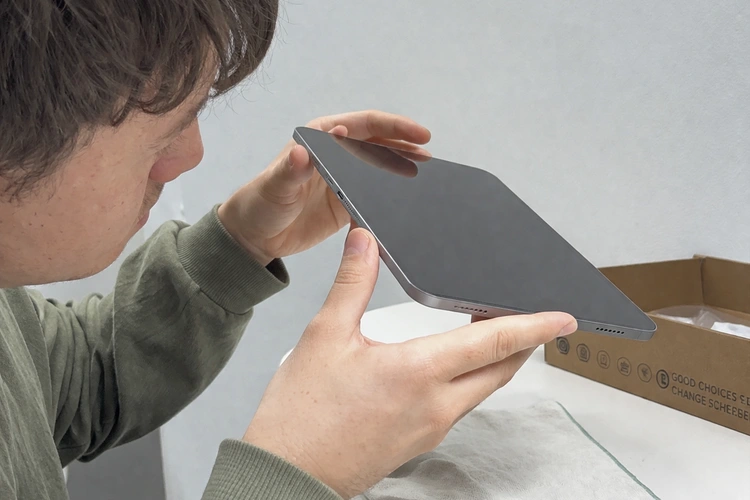
Things to Check Before Buying a Used Tablet
Working through the complete list of things to check before buying a used tablet takes roughly 20–30 minutes when done properly. Rushing is the most expensive mistake buyers make. The sections below move from the highest-cost-to-repair components down — screen first, then battery, then ports and chassis. That ordering isn't arbitrary. It reflects where money gets lost.
Screen and Display Health
The screen is the most expensive component to replace on any tablet. A replacement display on a mid-range Android tablet often runs $80–$150 in parts alone, not counting labor. On an iPad, Apple's own screen repair pricing sometimes exceeds what the used device cost in the first place. Screen problems are non-negotiable dealbreakers unless the price reflects them.
Run a full-screen color test before anything else. Several free apps cycle through solid red, green, blue, white, and black fills, which expose dead pixels (tiny fixed-color dots that never update), burn-in (ghost images from prolonged static content on the display), and backlight bleed (patches of uneven glow, most visible in dark corners on an otherwise black screen).
- Dead pixels: non-recoverable; negotiate price down significantly or reject the device
- Burn-in: permanent on LCD panels; potentially reversible on OLED if very minor
- Backlight bleed: common on budget LCD tablets; usually non-progressive but distracting in dark environments
- Touch dead zones: drag a stylus in a slow grid pattern across the entire surface — gaps in response indicate digitizer damage
Press gently on the display corners and watch for color shifting or rippling — a sign of delamination (separation between the glass and the display panel underneath) or a cracked digitizer that doesn't show on the surface. Check maximum brightness. Any large dark patches or uneven brightness at full output means the backlight is failing. Finally, hold the screen at a shallow angle in bright light to spot image retention — faint ghost layouts of previous app screens that appear at low viewing angles and signal prolonged static display use.
Battery Health
Battery condition is the variable that kills the most used-tablet purchases. Lithium-ion batteries have a finite number of charge cycles before capacity degrades meaningfully. Most manufacturers consider anything above 80% of original capacity to be healthy — below that threshold, users notice significantly shorter runtimes, and the decline accelerates.
On iPad, navigate to Settings → Battery → Battery Health & Charging. The maximum capacity percentage is displayed directly. Anything above 85% is excellent. Between 80% and 85% is acceptable for most buyers. Below 80%, either negotiate hard or pass — battery replacement through Apple is priced high enough that it eliminates most of the savings from buying used in the first place.
On Android tablets, built-in battery diagnostics vary by manufacturer. Samsung devices expose cycle count under Settings → Device Care → Battery → Battery Information. Other Android brands may hide the data inside Developer Options or require a third-party app entirely. AccuBattery measures actual charge capacity against the rated design capacity after a single charge cycle and delivers a reliable health percentage with no technical knowledge required.
Pro tip: Ask the seller to fully drain and recharge the battery once before the inspection meeting. Fresh charge data gives AccuBattery a more accurate health reading in less time than starting from a partial charge.
Red flags to watch during the test beyond the health percentage itself: device temperature rising during normal browsing, battery percentage jumping or dropping suddenly rather than declining smoothly, and any shutdown before the displayed percentage reaches zero. All three indicate a battery that's past the point of acceptable degradation.
Ports, Buttons, and Physical Condition
Test every physical button several times. Power button, volume up, volume down — each should click firmly with no mushiness, grinding, or inconsistency. A soft or erratic click usually means the mechanism is worn or debris-packed. On tablets with a fingerprint sensor built into the power button, test enrollment and unlock during the inspection.
Plug a cable into the charging port and give it a gentle side-to-side wiggle. Any play in the connection indicates port damage. A loose USB-C port is a $50–$100 repair on most devices and often more on flagships. Test the headphone jack if present — plug in earbuds and move the cable slightly while audio plays. Intermittent crackling or cutting out signals a failing jack that will get worse.
Play audio through the speakers at full volume. Distortion or crackling at high volume is normal on some budget hardware. Intermittent cutting out, however, indicates a failing speaker driver or a loose internal connection — neither is cheap to fix. Test both front and rear cameras by taking photos and recording a short video clip, then zoom in on the result. Scratched lenses produce permanently hazy, low-contrast images that no software adjustment can restore.
Run a finger along all four edges and each corner of the chassis. Hairline cracks in the frame signal previous drops. A dropped device may carry internal damage — loose ribbon cables, stressed battery connections — that doesn't surface immediately but causes failure within weeks. Check the water damage indicator sticker inside the SIM tray slot if the device has one. A red or pink sticker means liquid exposure. Liquid damage is progressive and almost never fully apparent on the surface at time of purchase.

New vs. Used Tablet — What the Numbers Show
The financial case for buying used is compelling when the device is in good condition. The risk increases sharply as condition deteriorates or age pushes the device toward the end of its software support window. The table below outlines what buyers typically encounter across three purchase scenarios.
| Factor | New Tablet | Used — Good Condition | Used — Fair or Unknown Condition |
|---|---|---|---|
| Price vs. retail | Full retail price | 30–50% below retail | 50–70% below retail |
| Battery health | 100% | 85–95% | 65–80% or unknown |
| Manufacturer warranty | Full coverage included | None or expired | None |
| Security update support | Several years remaining | 1–3 years remaining | May already be end-of-life |
| Hidden damage risk | None | Low with proper inspection | High |
| Return / recourse options | Standard retailer policy | Varies by marketplace | Often none |
| Typical use case fit | Power users, professionals | General, student, family use | Budget secondary device only |
The sweet spot is a used tablet in good condition at 35–45% below retail. That's where buyers capture real savings without absorbing serious risk. A device priced at 65% below retail is almost always priced that way for a documented reason. Treat extreme discounts as a diagnostic signal rather than a bargain.
Software and System Version
Every tablet has a software support window. Once a device stops receiving operating system security patches, it becomes vulnerable to exploits that newer devices block automatically. This matters most for tablets used in home offices, with banking apps, or for accessing work email and cloud storage.
On iPad, Settings → General → Software Update confirms whether the device still supports the current iPadOS version. For Android tablets, Settings → About Tablet → Android version shows the current OS, and the manufacturer's published support schedule indicates how much longer updates will continue. A tablet that can no longer receive security updates is worth meaningfully less — that factor belongs in any negotiation.
Also confirm that cellular-capable tablets aren't carrier-locked if buyers intend to use them with a different SIM. Carrier locks are fixable but add cost and friction. IMEI checks are free and take under a minute — running one before any payment protects against purchasing a device that's been reported stolen and can be remotely disabled.
When Buying Used Makes Sense — and When to Walk Away
Smart Reasons to Buy Used
Buying a used tablet is a sound decision in specific scenarios. For anyone who needs a reliable second screen for reading, note-taking, or light media consumption, a one-generation-old device at half price delivers identical real-world performance for those tasks. Students picking up a tablet specifically for note-taking or studying can save $150–$250 on a device that handles every required application without strain. The iPad vs Android tablet comparison breaks down which platforms age most gracefully and support longer software lifecycles — useful context when deciding which ecosystem to buy into secondhand.
Families setting up children's devices have even less reason to buy new. A tablet that's two or three generations old handles educational apps, video streaming, and video calls without difficulty. The risk of accidental damage makes a used device financially smarter — the sting of a cracked screen on a device that cost $150 is far different from the same accident on a $500 purchase.
- Second screen for reading or streaming: used is ideal
- Student note-taking device: used saves real money without performance sacrifice
- Children's supervised device: used is the rational choice
- Certified refurbished: best of both worlds — inspected, warranted, and priced below retail
- Professional graphic work or video editing: used is risky without certified refurbishment documentation
Certified refurbished tablets — sold directly by the manufacturer or an authorized service partner — sit between new and used in both price and risk. They pass a defined inspection standard, ship with at least a limited warranty, and typically land 15–25% below retail. For buyers who want savings without inspection hassle, certified refurbished is the recommended path.
Red Flags That Mean Skip It
Some dealbreakers are obvious. Others show up only when buyers know what to look for. Running through the full list of things to check before buying a used tablet surfaces most of them — but a few require specific attention because sellers rarely mention them.
- Seller refuses to unlock the device or remove their account before inspection
- Google or Apple account still active and seller claims it can't be removed until after purchase
- Screen has dead pixels, burn-in, deep cracks, or large pressure-sensitive areas
- Battery health below 75% on either platform
- Charging port has visible wobble, bent pins, or fails to hold the cable
- Device runs noticeably warm during casual browsing
- Water damage indicator sticker inside SIM tray is red or pink
- Price is dramatically below market without a documented explanation
- Seller pushes to complete the sale quickly and discourages a full inspection
The last item is underrated. Legitimate sellers of working devices have no reason to rush. Impatience during inspection is almost always a signal that the seller knows something the buyer doesn't. Trust that pattern — it shows up consistently across every category of used electronics.
Keeping a Used Tablet Running Strong
Software, Updates, and Storage
Once a used tablet arrives home, the first step is a factory reset. This clears the previous owner's data entirely, removes any apps they installed (some of which may run in the background and drain battery), and starts the device fresh. After the reset, install all available operating system updates immediately. Security patches close vulnerabilities that accumulated during the previous owner's use.
Set up a reliable backup routine before loading the device with personal data. The tablet data backup guide covers both cloud-based and local backup options that work across iOS and Android — useful for establishing a system before the tablet becomes the primary device for any important use case.
Keep internal storage below 80% capacity. Tablets — especially older Android models — slow down noticeably when storage is nearly full. The operating system uses free storage space as a buffer for temporary operations during multitasking. A tablet with 128 GB of storage behaves significantly better with 100 GB in use than with 125 GB in use. Keeping a reasonable buffer is not optional on older hardware — it's maintenance.
Monitor installed apps periodically. Apps update themselves, and updates sometimes expand storage footprint, add background processes, or request new permissions. On a used tablet with a modest processor, background app activity that accumulates over months has a measurable impact on responsiveness and battery drain.
Screen and Battery Care
A used tablet already carries mileage on its battery. Protecting remaining capacity becomes a priority from day one. Avoid charging to 100% every cycle — keeping charge between 20% and 80% reduces electrochemical stress on lithium-ion cells and extends the remaining usable lifespan. Most modern tablets offer an optimized charging mode that automates this, typically holding at 80% overnight and topping off only before anticipated use.
Avoid extreme temperatures. Heat is the fastest way to accelerate battery degradation. Leaving a tablet on a car dashboard in summer, using it while it charges on a soft surface that traps heat, or running processor-intensive apps while charging simultaneously — all of these raise the internal temperature and speed up capacity loss on a battery that's already been through significant use.
- Apply a tempered glass screen protector immediately after setup
- Use a case with reinforced corners — drop damage is cumulative even when invisible
- Keep charge between 20% and 80% for daily use
- Avoid charging on soft surfaces that trap heat
- Clean ports with a dry soft brush — never use compressed air directly into the charging port
- Enable optimized or adaptive charging in battery settings if available
Screen protection on a used device matters more than on a new one. The display may already carry micro-scratches invisible under normal lighting. A tempered glass protector prevents new damage and visually disguises minor existing marks. A protective case with raised lip protection — where the front face of the case sits slightly above the screen surface — prevents the display from contacting surfaces when placed face-down.

Insider Tips for Getting the Best Deal
Where to Buy (and Where Not To)
The source of a used tablet affects risk more than almost any other single factor. Peer-to-peer marketplaces like Facebook Marketplace or Craigslist offer the lowest prices and the highest risk. There's no buyer protection, no return window, and no recourse when the device fails three days after purchase. For buyers willing to run a thorough in-person inspection, these platforms can produce genuine deals — but walking away has to be an option, not an embarrassment.
eBay provides more structured protection through its Money Back Guarantee, but only when buying from sellers with strong feedback scores and an explicitly stated 30-day return policy. Filter by "sold listings" rather than active listings to see what devices in comparable condition actually sold for — asking prices on used marketplaces tend to run 15–25% above final sale prices.
- Best buyer protection: Manufacturer-certified refurbished (Apple, Samsung)
- Strong balance of price and protection: eBay from top-rated sellers with returns enabled
- Acceptable with inspection: Reputable local electronics repair shops that sell refurbished units
- Higher risk: Facebook Marketplace and Craigslist — inspection is mandatory, no recourse after sale
- Avoid: Any seller who asks to meet at an unusual location, refuses to power on the device, or pressures a quick sale
Local electronics repair shops that sell devices they've personally refurbished can be surprisingly good sources. The technicians who repaired the device know exactly what was wrong and what was replaced. Asking for a written description of any repairs performed — and whether any components like the battery or screen were swapped — provides meaningful protection and negotiating context.
Negotiation and Pricing
Every finding during the inspection is a legitimate negotiation point. Battery health at 78%? That's a documented cost — battery replacement runs $50–$100 on most devices, higher on flagships. A slightly loose charging port, audible speaker distortion at high volume, or any cosmetic crack in the chassis all justify a lower offer. Buyers who arrive with specific findings get better prices than buyers who make vague claims about the device being "a little worn."
Research current market value before arriving. Completed eBay sales — filtered by "sold listings" and the exact model number — show real transaction prices, not wishful asking prices. For flagship devices from major manufacturers, the manufacturer's own trade-in value calculator provides a useful baseline: if the company values the device at $180 for trade-in, a private seller asking $280 has limited room to justify that gap.
Never buy a used tablet without either a 20-minute in-person inspection or a clearly stated return window from a platform with buyer protection. Any seller who refuses both is almost certainly aware of a problem that the buyer hasn't found yet. That's not cynicism — it's a pattern that repeats consistently across used electronics markets at every price point. The inspection costs nothing. Walking away from a bad deal is always free.
Frequently Asked Questions
What is the most important thing to check when buying a used tablet?
Battery health is the single most critical factor. A tablet with a failing battery becomes frustrating within days of purchase, and replacement costs often eliminate most of the savings from buying used. Check battery health directly in iPad's Settings → Battery → Battery Health & Charging, or use AccuBattery on Android to measure actual capacity against design capacity before agreeing to any price.
Is it safe to buy a used tablet without testing it in person?
Only when there is a genuine buyer-protection return window from a reputable platform. Without in-person testing or the ability to return the device, buyers have no protection against hidden dead pixels, degraded batteries, or damaged charging ports that don't appear in listing photos. A full 20–30 minute inspection — covering screen, battery, ports, buttons, and software — remains the most reliable protection available.
How much should a used tablet cost compared to buying new?
A used tablet in good condition typically sells for 30–50% below its original retail price. Devices priced at 60–70% below retail almost always carry a significant issue — substantial battery degradation, cosmetic damage, or a component approaching failure. Using eBay's sold-listings filter to find completed sales on the exact model provides the most accurate baseline for assessing whether a price is fair.
Final Thoughts
A careful inspection of the things to check before buying a used tablet takes under 30 minutes and can prevent hundreds of dollars in repair costs or a device that fails within the first month. The tablet section at Ceedo covers in-depth reviews and current model comparisons — a practical companion to this inspection checklist for anyone narrowing down which device to target before making a final used-market purchase.
 |
 |
 |
 |

About Priya Anand
Priya Anand covers laptops, tablets, and mobile computing for Ceedo. She holds a bachelor degree in computer science from the University of Texas at Austin and has spent the last nine years writing reviews and buying guides for consumer electronics publications. Before joining Ceedo, Priya worked as a product analyst at a major retailer where she helped curate the laptop and tablet category. She has personally benchmarked more than 200 portable computers and is particularly interested in battery longevity, repairability, and the trade-offs between Windows, macOS, ChromeOS, and Android tablets. Outside of work, she runs a small Etsy shop selling laptop sleeves she sews herself.
Leave a Reply

