 ee
eeLaptops ›
How to Fix the "NVIDIA Installer Failed" Error
Encountering the NVIDIA installer failed error is one of the most frustrating experiences for PC users who rely on their graphics card for gaming, video editing, or creative work. You download the latest driver, run the setup — and instead of a smooth installation, you're greeted with a red error screen and no clear explanation. The good news is that this error is almost always fixable without replacing hardware. In this guide, we'll walk through every proven method to resolve the nvidia installer failed problem, from basic preparation to advanced registry edits, so you can get back to work as quickly as possible.
Whether you're running a dedicated laptop for creative work or a full desktop rig, GPU driver issues can derail your productivity. This guide covers all the bases — and if you've ever dealt with a similar problem, you may find our breakdown of how to fix Windows Cannot Install Required Files equally useful.
Contents
- Why Does the NVIDIA Installer Failed Error Occur?
- Preparing Your System Before Reinstalling NVIDIA Drivers
- Step-by-Step Fixes for the NVIDIA Installer Failed Error
- Advanced Troubleshooting Methods
- Common NVIDIA Installer Error Codes Explained
- When It Might Be Time to Upgrade Your Hardware
- Frequently Asked Questions
Why Does the NVIDIA Installer Failed Error Occur?
NVIDIA driver installations fail for a surprisingly wide range of reasons, and understanding the root cause is essential before attempting any fix. The installer doesn't provide much detail in the error message, which is why so many users feel stuck. Here are the most common causes:
- Corrupted or conflicting existing driver files — old driver remnants left behind by a previous installation interfere with the new setup.
- Antivirus or security software interference — some security tools flag NVIDIA installer components as suspicious and block them mid-install.
- Windows Update conflicts — a pending or recently applied Windows update can create incompatibilities with the driver package.
- Insufficient permissions — running the installer without administrator rights causes it to fail silently.
- Incompatible driver version — downloading a driver meant for a different GPU model or architecture results in an immediate failure.
- Corrupted download — a partially downloaded installer file will fail partway through extraction or installation.
Most cases fall into one or two of these categories. Once you identify which applies to your system, the fix is usually straightforward. Let's start by preparing your machine properly.
Preparing Your System Before Reinstalling NVIDIA Drivers
Check GPU and Driver Compatibility
Before doing anything else, confirm you're downloading the correct driver for your specific GPU. Visit NVIDIA's official driver download page and use the manual search tool — enter your GPU series, product line, operating system, and preferred language. Downloading a "Game Ready" driver when you need a "Studio Driver" (or vice versa) can sometimes cause installation failures, particularly on systems used for content creation.
You can verify your exact GPU model by right-clicking the desktop → Display Settings → Advanced Display Settings, or by opening Device Manager and expanding the "Display Adapters" section. Make a note of the full model name before searching for drivers.
Free Up System Resources
Close all open applications before starting the installation. The NVIDIA installer needs to write to system directories that other processes might have locked. Use Task Manager (Ctrl + Shift + Esc) to close any non-essential background processes. If you have GPU-intensive software like video editors or design tools open, close them entirely — not just minimized.
Also ensure you have at least 5–10 GB of free disk space on your system drive. Driver packages are compressed but extract to several gigabytes during installation, and insufficient space causes installer failures that look deceptively like driver incompatibility issues.
Step-by-Step Fixes for the NVIDIA Installer Failed Error
Clean Uninstall Using Display Driver Uninstaller (DDU)
This is the single most effective fix for the NVIDIA installer failed error and should be your first serious attempt after basic preparation. Display Driver Uninstaller (DDU) is a free third-party tool that removes every trace of GPU driver files — including registry entries, leftover folders, and service entries — that Windows' built-in uninstaller leaves behind.
Here's how to use it correctly:
- Download DDU from the developer's official site (Guru3D).
- Boot Windows into Safe Mode (hold Shift while clicking Restart → Troubleshoot → Advanced Options → Startup Settings → Restart → press 4).
- In Safe Mode, run DDU. Select "GPU" as the device type and "NVIDIA" as the manufacturer.
- Click "Clean and restart." DDU will remove all driver traces and reboot normally.
- After the system restarts into normal Windows, immediately run the NVIDIA installer before Windows installs a generic driver automatically.
Running DDU in Safe Mode is critical — it ensures no NVIDIA processes are running in the background that could lock files and cause the wipe to be incomplete.
Updating the Driver Manually
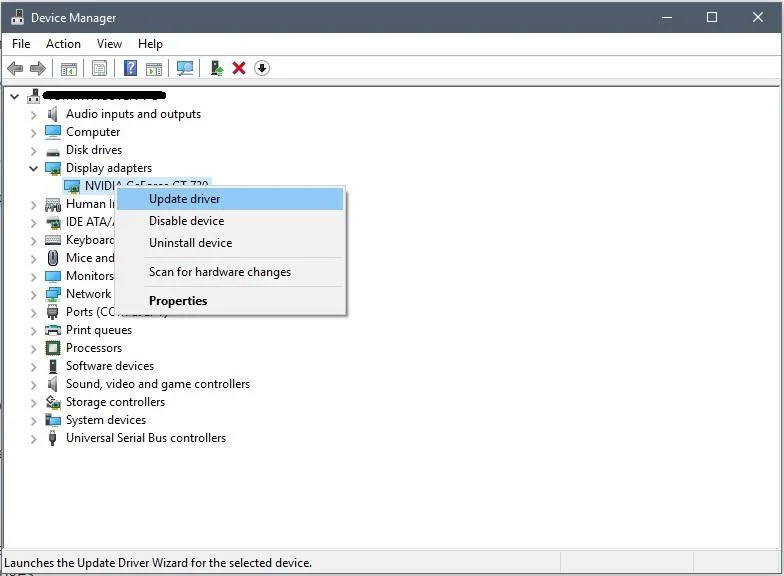
If the full installer continues to fail, try using the Device Manager to install the driver manually. This bypasses the NVIDIA installer wrapper and installs only the core driver files:
- Download the NVIDIA driver package from the official site as usual, but don't run it yet.
- Extract the package to a folder (you can use 7-Zip or WinRAR; NVIDIA installers are self-extracting archives).
- Open Device Manager, expand "Display Adapters," right-click your NVIDIA GPU, and select "Update driver."
- Choose "Browse my computer for drivers" and point it to the extracted folder.
- Windows will locate the correct INF file and install the driver directly.
This method skips the GeForce Experience installation and other bundled components that sometimes trigger the failure. It installs only what's essential to get the GPU working at full capacity.
Temporarily Disable Antivirus Software
Security software — especially third-party antivirus suites — frequently interferes with NVIDIA driver installations. The installer modifies kernel-level system files, which triggers behavioral detection heuristics in many antivirus programs. This causes the installation to be blocked or partially completed, resulting in the nvidia installer failed message.
Temporarily disable your antivirus before running the installer. For Windows Defender, go to Windows Security → Virus & Threat Protection → Manage Settings → toggle off Real-time Protection. For third-party software, right-click the system tray icon and look for a "Disable temporarily" or "Pause protection" option. Remember to re-enable it immediately after the installation completes successfully.
Run the Installer as Administrator
This sounds obvious, but many users overlook it. Even if you're logged in as an administrator account, you may need to explicitly run the installer with elevated privileges. Right-click the NVIDIA installer executable and select "Run as administrator." This ensures the installer has full write access to system directories, the registry, and driver stores — all of which are required for a successful installation.
If you're on a work or school machine with restricted permissions, contact your IT administrator — driver installations in restricted environments require explicit policy changes that only admins can make.
Advanced Troubleshooting Methods
Modify the Windows Registry
If all standard methods have failed, a specific registry entry may be preventing the NVIDIA installer from completing. A known culprit is a leftover pending file operations entry:
- Press Win + R, type
regedit, and press Enter. - Navigate to:
HKEY_LOCAL_MACHINE\SYSTEM\CurrentControlSet\Control\Session Manager - Find the entry called PendingFileRenameOperations.
- If it exists and contains NVIDIA-related entries, delete them (or delete the entire value if it only contains NVIDIA data).
- Restart your PC and attempt the installation again.
Be careful when editing the registry. Only delete the specific entry described above — making unrelated changes can destabilize Windows. If you're not comfortable with registry editing, skip to the next method or create a system restore point first (search for "Create a restore point" in the Start menu).
For users with more complex driver issues, the same diagnostic mindset applies to other hardware problems — our article on Realtek PCIe GBE Family Controller issues and fixes covers a similar process for network adapter drivers and is worth reading if you're experiencing multiple device driver failures simultaneously.
Install Pending Windows Updates
NVIDIA drivers sometimes require specific Windows components — particularly Visual C++ Redistributables and .NET Framework versions — that are delivered via Windows Update. If your system is missing these dependencies, the installer will fail without a clear explanation.
Go to Settings → Windows Update and install all pending updates, including optional and quality updates. Restart after updates are installed, then attempt the NVIDIA driver installation again. This step is especially important if you've recently reinstalled Windows or are running a freshly built system.
Common NVIDIA Installer Error Codes Explained
The NVIDIA installer failed message is sometimes accompanied by a specific error code in the installation log. These logs are saved to C:\Program Files\NVIDIA Corporation\Installer2\ and can reveal exactly where the installation broke down. Here are the most common codes and what they mean:
| Error Code / Message | Likely Cause | Recommended Fix |
|---|---|---|
| Setup was unable to find components | Corrupted or incomplete installer download | Re-download the full installer from NVIDIA's site |
| NVIDIA Installer cannot continue | GPU not detected or running in generic mode | Reseat GPU, check PCIe slot, run DDU then reinstall |
| Driver installation failed (Code 43) | Hardware fault or corrupted driver store | Clear driver store, check for hardware damage |
| Access denied (Error 5) | Insufficient permissions | Run installer as administrator, disable antivirus |
| PendingFileRenameOperations block | Leftover registry entries from previous install | Clear registry entry as described above, then restart |
| INF error / Driver not compatible | Wrong driver version for GPU model | Verify GPU model and download exact matching driver |
| GeForce Experience installation failed | GFE service conflict or previous install remnants | Use DDU, reinstall without GFE (custom install option) |
If you find your error code in this table, follow the recommended fix before attempting anything more invasive. Most cases are resolved at this stage.
When It Might Be Time to Upgrade Your Hardware

If you've tried every method in this guide and the nvidia installer failed error persists, it may indicate a deeper hardware problem. In rare cases, the GPU itself is failing — particularly if you're also experiencing artifacts on screen, random crashes, or the card isn't recognized in Device Manager at all. Before concluding hardware failure, try the GPU in another PCIe slot or test it in a different system if possible.
For laptop users, GPU issues are harder to diagnose and nearly impossible to self-repair, since the GPU is soldered to the motherboard in most modern designs. If your laptop's NVIDIA GPU is persistently failing to install drivers even after a full Windows reinstall, it's worth having it assessed by a certified repair technician.
If you're considering a new machine capable of running the latest NVIDIA GPU drivers without issues, check out our roundups of the best laptops for Adobe Premiere and the best laptops for computer science students — both feature systems with well-supported NVIDIA GPUs and reliable driver ecosystems that tend to install without incident.
A persistent driver installation failure on otherwise healthy hardware can also sometimes be traced back to a corrupted Windows installation. In that scenario, a clean reinstall of Windows followed immediately by the NVIDIA driver installation (before installing anything else) is the most reliable path to resolution. It's time-consuming but eliminates every variable at once.
Quick Summary of All Fixes
To recap, here's the order in which to attempt the fixes for the NVIDIA installer failed error:
- Verify you've downloaded the correct driver for your exact GPU model.
- Close all applications and ensure enough free disk space.
- Run the installer as administrator.
- Temporarily disable antivirus software.
- Use DDU in Safe Mode for a complete clean uninstall, then reinstall.
- Try installing the driver manually via Device Manager.
- Install all pending Windows Updates.
- Clear the PendingFileRenameOperations registry entry.
- Re-download the installer in case of a corrupted download.
- If all else fails, consider a clean Windows reinstall or hardware assessment.
Following this sequence methodically means you won't waste time jumping to complex solutions when the issue is something simple like a permissions problem or a stale registry entry.
Frequently Asked Questions
What does "NVIDIA installer failed" mean?
It means the NVIDIA driver setup program was unable to complete the installation process. This can happen for several reasons including corrupted existing driver files, antivirus interference, insufficient permissions, or an incompatible driver version for your specific GPU model.
Is it safe to use Display Driver Uninstaller (DDU)?
Yes, DDU is a well-established and widely trusted tool in the PC hardware community. It is safe to use when run in Safe Mode as directed. It removes driver files and registry entries more thoroughly than Windows' built-in uninstaller, and it does not affect other system software or personal files.
Why does NVIDIA installer fail after a Windows update?
Windows updates can sometimes install a generic GPU driver that conflicts with the NVIDIA installer, or they may update system components in a way that triggers compatibility checks in the driver package. Running DDU after a Windows update and then reinstalling the NVIDIA driver usually resolves this.
Can I install NVIDIA drivers without GeForce Experience?
Yes. When running the NVIDIA installer, choose "Custom (Advanced)" installation instead of Express, then uncheck GeForce Experience from the component list. Alternatively, use Device Manager to install the driver directly from an extracted driver package, which skips all bundled software entirely.
How do I find the NVIDIA driver installation log?
NVIDIA saves detailed installation logs to C:\Program Files\NVIDIA Corporation\Installer2\ or to your Temp folder. Look for files ending in .log with "NVIDIA" in the name. These logs show exactly which component failed and why, which helps identify whether the issue is permissions, file corruption, or hardware detection.
Will reinstalling Windows fix the NVIDIA installer failed error?
In most cases, reinstalling Windows is not necessary — the fixes outlined in this guide resolve the vast majority of NVIDIA installer failures. However, if your Windows installation is deeply corrupted or you've exhausted all other options, a clean Windows install followed immediately by the NVIDIA driver installation (before any other software) is a reliable last resort.
 |
 |
 |
 |

About Priya Anand
Priya Anand covers laptops, tablets, and mobile computing for Ceedo. She holds a bachelor degree in computer science from the University of Texas at Austin and has spent the last nine years writing reviews and buying guides for consumer electronics publications. Before joining Ceedo, Priya worked as a product analyst at a major retailer where she helped curate the laptop and tablet category. She has personally benchmarked more than 200 portable computers and is particularly interested in battery longevity, repairability, and the trade-offs between Windows, macOS, ChromeOS, and Android tablets. Outside of work, she runs a small Etsy shop selling laptop sleeves she sews herself.