 ee
eeHow to Use Staples Laminator
Ever pulled a document out of a laminator only to find it cloudy, bubbled, and completely ruined? The good news is that nearly every laminating failure traces back to a handful of fixable mistakes. Knowing how to use a Staples laminator properly — the right settings, the right technique, the right materials — makes the difference between a professional-looking result and a wasted pouch. This guide covers everything from first-time setup through advanced batch laminating, so you get clean results from the very first pass. For model-specific recommendations, browse the full laminators collection.
Contents
What Is a Staples Laminator?
A laminator seals documents between two layers of plastic film using heat, creating a durable, moisture-resistant coating. Lamination has been used in commercial printing for decades; today, compact desktop models bring the same capability to home offices and classrooms at an accessible price point. Staples-brand laminators are thermal machines that use heated rollers to bond the film around your document — no pressure-sensitive adhesives, no chemicals involved.
Most Staples models handle sheet sizes from business card (2.25″ × 3.75″) through letter (9″ × 11.5″), with some mid-range units reaching legal or wide format. Pouch thickness — measured in mils — determines stiffness and the required heat level.
Key Components to Know
- Feed slot — where you insert the sealed spine of the pouch
- Heated rollers — melt and press the film around the document
- Exit slot — where the finished sheet emerges
- Temperature selector — adjusts heat for 3-mil, 5-mil, or heat-sensitive materials
- Ready indicator — light or beep signaling the machine has reached operating temperature
If you have worked with other brands, the core mechanics are the same. Our walkthrough on how to use the Scotch TL901 laminator offers a useful comparison if you are deciding between models.
How to Use a Staples Laminator: Step-by-Step
The process breaks into three stages. Each one matters — skipping preparation steps is the most common cause of poor results.
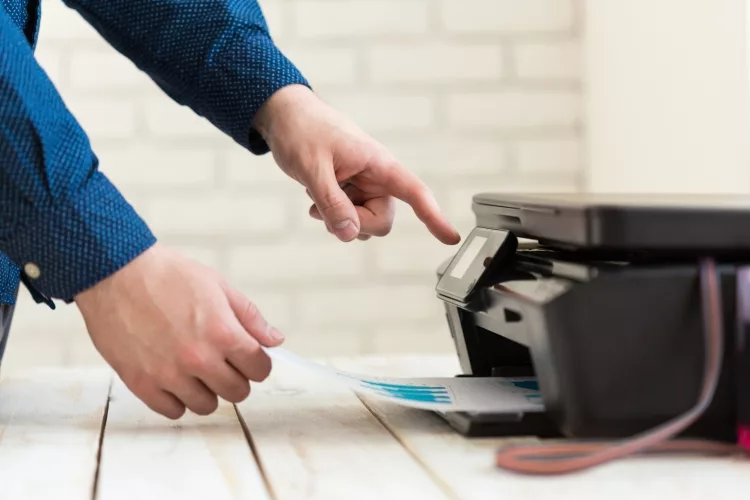
Preparing Your Document and Pouches
Good preparation prevents most laminating failures before the machine is even turned on.
- Let freshly printed documents dry for at least 5 minutes — wet ink smears inside the sealed pouch
- Choose the right pouch size: leave a minimum ¼-inch plastic border around all edges of your document
- Select the correct mil thickness: 3-mil for flexible everyday documents, 5-mil for stiffer ID-style cards, 10-mil for rigid badge-style protection where supported
- Slide the document into the open end of the pouch — the sealed spine goes in first when you feed it through the machine
Feeding the Pouch
- Power on the laminator and wait for the ready indicator — typically 3 to 5 minutes.
- Set the temperature dial to match your pouch thickness (marked on the pouch packaging).
- Insert the sealed spine edge into the center of the feed slot, holding the pouch level and straight.
- Guide the pouch gently with two fingers until the rollers grip it — then let go. Do not push or force.
- Allow the sheet to exit naturally onto the tray. Do not pull it through from the exit side.
Finishing and Trimming
Place the laminated sheet flat on a cool surface for 60 seconds. Slight curling while warm is normal and self-corrects as it cools. To trim excess film, use a straight-edge guillotine or rotary cutter — always leave a thin plastic border intact around every edge. Cutting through the seal allows moisture to work its way in over time and will eventually cause delamination.
Pro Tips for Flawless Results
Mastering how to use a Staples laminator goes beyond following the basic steps. Small technique adjustments consistently improve output quality.
Getting Temperature Settings Right
- Match heat to mil thickness — running 5-mil pouches on a 3-mil setting leaves edges partially fused and causes perimeter bubbling
- Use a carrier sheet for photos and glossy prints — a folded piece of cardstock prevents direct roller contact on delicate surfaces
- Run a blank pouch first after startup to stabilize roller temperature before laminating anything important
- Choose slow feed if your model has a speed setting — slower passes allow more heat dwell time for thick pouches
Pro tip: Store unused laminating pouches flat and away from direct sunlight — even mild pre-use heat exposure causes uneven film bonding that no amount of technique can fix after the fact.
Preventing and Clearing Jams
Jams happen most often when a pouch feeds at an angle or when small items shift inside the pouch before the rollers grip. To prevent them, center every document and use a carrier sheet for anything smaller than a business card. If a jam occurs, use the reverse button to back the pouch out — never pull it forward. The jam-clearing mechanics on Staples machines are nearly identical to other thermal laminators; our guide on how to unblock a Fellowes laminator applies directly.
Beginner vs. Advanced Laminating Techniques
What Beginners Need to Know
If this is your first time using a Staples laminator, focus on getting these fundamentals right before experimenting:
- Always wait for the ready light — feeding too early is the top cause of cloudy results
- Start with letter-size 3-mil pouches, the most forgiving format available
- Practice on a spare printed page before laminating anything irreplaceable
- Never laminate items with raised surfaces (embossed text, foam stickers) without a carrier sheet
Advanced Methods for Power Users
Once the basics feel automatic, these techniques extend what your machine can do.
- Double-pass laminating — run the pouch through twice (rotate 180° for the second pass) for extra adhesion on thick documents
- Batch chaining — feed multiple pouches end-to-end without gaps to keep rollers at stable temperature and improve throughput
- Cold bypass mode — some Staples models support self-adhesive cold pouches, useful for heat-sensitive items like wax crayon artwork or certain inkjet prints
- Trimming jigs — pair with a rotary trimmer for consistent borderless-style cards with uniform 1/8-inch film margins
Common Laminating Mistakes to Avoid
Sizing and Alignment Errors
Using the wrong pouch size is the most widespread beginner mistake. If the pouch is too small, the document edge extends past the film boundary — bare adhesive touches the rubber rollers and leaves residue that is tedious to remove. If the pouch is too large, uneven thick borders may not seal uniformly. Rules to follow:
- Measure your document before buying pouches — choose the next size up if dimensions are close to the pouch limit
- Center the document inside the pouch before feeding and press it flat to remove trapped air
- Align the pouch squarely with the feed slot — even a 5-degree angle causes diagonal bubble streaks
Heat and Speed Errors
Running the machine too cold produces cloudy or partially bonded areas; too hot causes warping or melting, particularly with thin paper stocks. Key rules:
- Never laminate thermal paper (receipts, fax sheets) — the heat turns them black
- Do not laminate documents with tape, glue sticks, or sticky notes attached — adhesive melts onto the rollers
- Do not leave the laminator powered on and unattended for extended periods
- If ink smears inside the pouch post-lamination, the print needed more drying time
Roller contamination from adhesive residue causes streaking on finished sheets over time. The principle is the same as keeping any office machine clean — our guide on how to remove printer ink from surfaces covers closely related maintenance logic worth understanding alongside laminator upkeep.
Practical Uses for a Staples Laminator
Home and Family Uses
A desktop laminator earns its counter space quickly. Common household applications include:
- Recipe cards — laminated cards survive spills and heavy kitchen handling
- Children's artwork — preserve drawings as reusable placemats or keepsake wall pieces
- Emergency contact cards — laminated wallet-size cards last years in school bags
- Activity and flash cards — laminated surfaces accept dry-erase markers, making reusable educational materials
- Garden labels — laminated tags outlast rain, sun, and seasonal wear far better than plain paper
Office and Classroom Uses
In professional settings, laminators handle a surprisingly wide variety of tasks. Teachers laminate visual aids, behavior charts, name tags, and classroom rules posters — even as the best tablets for teachers handle more digital content, laminated physical materials remain a classroom essential. For home office workers, laminated reference sheets and presentation aids look polished without the expense of professional print services.
Business applications include employee ID badges, countertop menus, policy document covers, and equipment instruction cards. Workers who manage high document volumes alongside a business tablet often find that laminating key reference sheets bridges digital and physical workflows efficiently. Pairing your laminator with a well-maintained printer also matters — see our guide on how to refill a toner cartridge to keep printing costs down as laminating volume grows.
Laminator Costs and Accessories Breakdown
Machine and Pouch Costs
Staples laminators span a wide price range. Here is a practical overview of what you can expect to spend across tiers:
| Category | Entry-Level | Mid-Range | Professional |
|---|---|---|---|
| Machine Price | $20–$40 | $40–$80 | $80–$200+ |
| Max Sheet Width | 9 in. (letter) | 9–13 in. (letter/legal) | 13+ in. (wide format) |
| Supported Mil Thickness | 3-mil only | 3-mil and 5-mil | 3-mil, 5-mil, 10-mil |
| Warm-Up Time | 3–5 minutes | 2–4 minutes | Under 2 minutes |
| 50-Pack Letter Pouches (3-mil) | ~$10–$15 across all tiers | ||
Ongoing and Hidden Costs
The machine is a one-time purchase; pouches are recurring. At roughly $12 for 50 letter pouches, each lamination costs about $0.24. Regular users laminating 20+ items per week spend $5–$10 per month on pouches. Factor in these often-overlooked accessories:
- Carrier sheets — $8–$12 per pack; reusable dozens of times if stored flat
- Rotary or guillotine trimmer — $15–$30; essential if you regularly laminate cards
- Cleaning sheets — $6–$10; run one through every 50–100 passes to keep rollers free of residue
- Bulk pouches — buying 200-count packs cuts per-unit cost significantly for heavy users
An entry-level machine with a starter pack of pouches and a basic trimmer typically comes in under $60 total — making a laminator one of the most cost-effective office tools available.
The Bottom Line
Getting consistent, professional results from a Staples laminator is a matter of matching materials to settings, feeding straight, and keeping the machine clean. The hardware is simple — the technique is what separates clean laminations from cloudy, bubbled ones.
- Match pouch mil thickness to the correct temperature setting and always use a carrier sheet for photos or delicate prints
- Feed the sealed spine edge first, guide it straight, and let the rollers do the work — never force or pull
- Avoid laminating thermal paper, undried ink, or documents with adhesives still attached
- Run a cleaning sheet every 50–100 passes and store pouches flat to maintain consistent output over time
Frequently Asked Questions
How long does a Staples laminator take to warm up?
Most Staples laminators reach operating temperature in 3 to 5 minutes. Premium models can be ready in under 2 minutes. Always wait for the ready indicator light or beep before feeding any pouches — laminating before the machine is fully heated produces cloudy or partially bonded results that cannot be corrected after the fact.
What mil thickness should I use in my Staples laminator?
For most everyday documents — letters, certificates, or photos — 3-mil pouches are the right choice. Use 5-mil for items that need to feel rigid and card-like, such as ID badges or business cards. Use 10-mil only if your specific Staples model supports it; forcing thick pouches through an underpowered laminator is a leading cause of jams.
Why does my laminated document have bubbles or cloudy patches?
Bubbles and cloudiness are almost always caused by one of three things: insufficient heat for the pouch thickness selected, moisture in the document, or misaligned feeding. Ensure your document is completely dry, that the temperature dial matches the mil rating on your pouch packaging, and that the pouch enters the feed slot straight and centered.
Can I laminate photos with a Staples laminator?
Yes, but always use a carrier sheet to protect the photo surface from direct roller contact, which can leave pressure marks or cause uneven adhesion. Set the machine to its lowest temperature and the slowest speed setting if available. Matte-finish photos generally laminate more cleanly than high-gloss prints, which are more prone to surface haze.
Why does my Staples laminator keep jamming?
Jams most commonly result from feeding a pouch at an angle, a document shifting inside the pouch just before the rollers grip it, or small items fed without a carrier sheet. Activate the reverse function to back the jammed pouch out — never pull it forward from the exit side. If adhesive buildup on the rollers is the cause, run a cleaning sheet through the machine.
Do I need to use Staples-brand pouches in a Staples laminator?
No. Laminating pouches are not proprietary — any standard thermal pouch in the correct mil thickness and sheet size works in a Staples machine. That said, low-quality off-brand pouches sometimes have uneven film coating that causes hazy results or sticks to the rollers. Stick to established brands for reliable performance, especially for important documents.
How do I clean the rollers on my Staples laminator?
Use purpose-made laminator cleaning sheets — stiff acetate sheets that lift debris off the rollers as they pass through. Run one through every 50 to 100 laminations. For stubborn adhesive buildup, power off the machine, allow it to cool completely, then gently wipe the rollers with a cloth lightly dampened with isopropyl alcohol. Never use water, which can damage internal components.
 |
 |
 |
 |

About Rachel Chen
Rachel Chen writes about scanners, laminators, and home office productivity gear. She started her career as an office manager at a midsize law firm, where she was responsible for purchasing and maintaining all of the document handling equipment for a 60-person staff. That experience sparked a deep interest in archival workflows, paperless office setups, and document preservation. Rachel later earned a bachelor degree in information science from Rutgers University and now writes full time. She is a strong advocate for ADF reliability over raw resolution numbers and has tested every major flatbed and document scanner sold in the United States since 2018.